


Hot App Reviews - Best Free Apps Download & Guides

Install Instagram at No-Cost

WhatsApp Setup

Download and Install YouTube

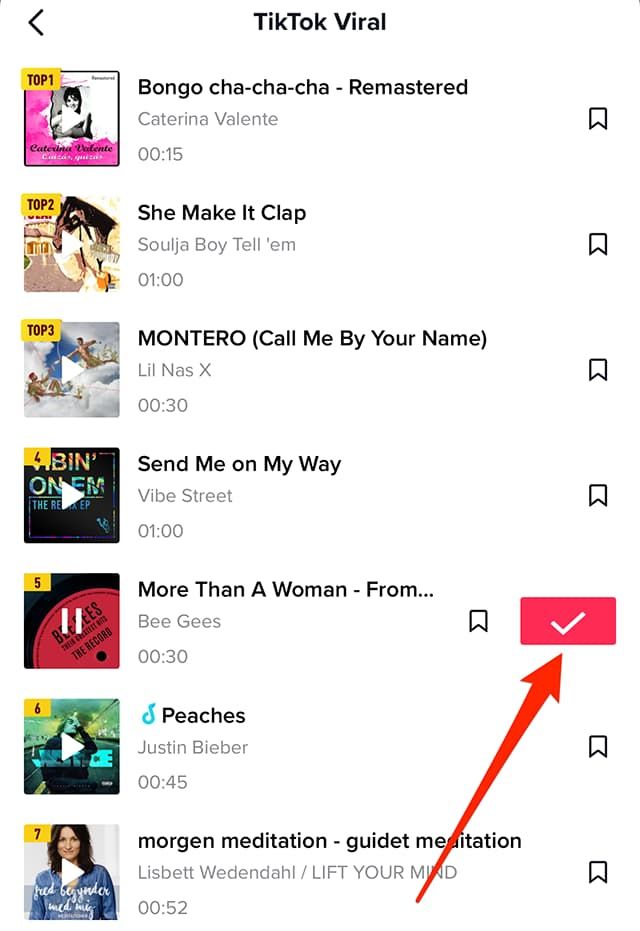
Add Trending Songs to Your TikTok Videos
 4.8
4.8
How to Add Songs1. First, create or upload your video by tapping the “+” icon.2. Tap “Sounds” at the top of the screen before recording or after uploading a video clip.3. Browse popular sounds or search by using the search bar to find any particular songs.4. Preview a song by tapping it, and if you like it tap ‘Checkmark’ to add it to your video.5. Before finalizing your post, you can drag your song on the timeline to where you wish it to become play in your video.

Uninstall WhatsApp
4.6
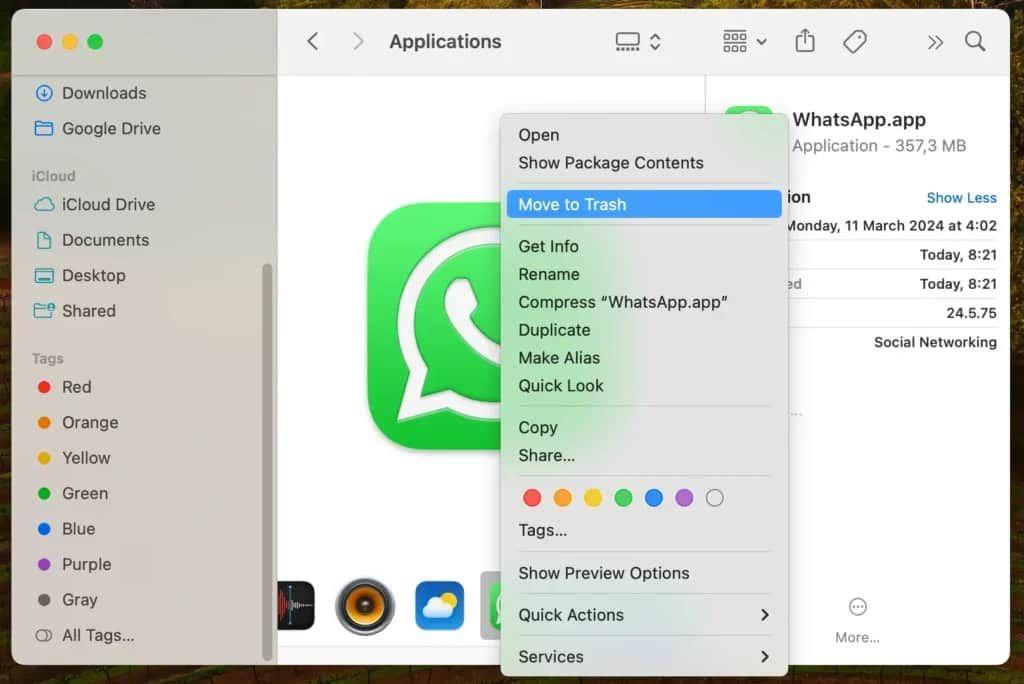
How to Uninstall WhatsApp1. Android Devices:- Long-press on the icon of WhatsApp and click on “Uninstall.”- Or go to “Settings,” select “Apps,” find WhatsApp, and click "Uninstall."2. iOS Devices:- Long-press on the icon for WhatsApp and select “Remove App.”- Alternatively, go to “Settings,” select “General,” then "iPhone Storage," locate WhatsApp, and delete it.3. Computer Systems (Windows/Mac):- In Windows, right-click at the Start Menu on WhatsApp’s icon and select “Uninstall.”- If you are on Mac, drag WhatsApp to Trash to delete it.

Customize Telegram Themes & Notification
4.0
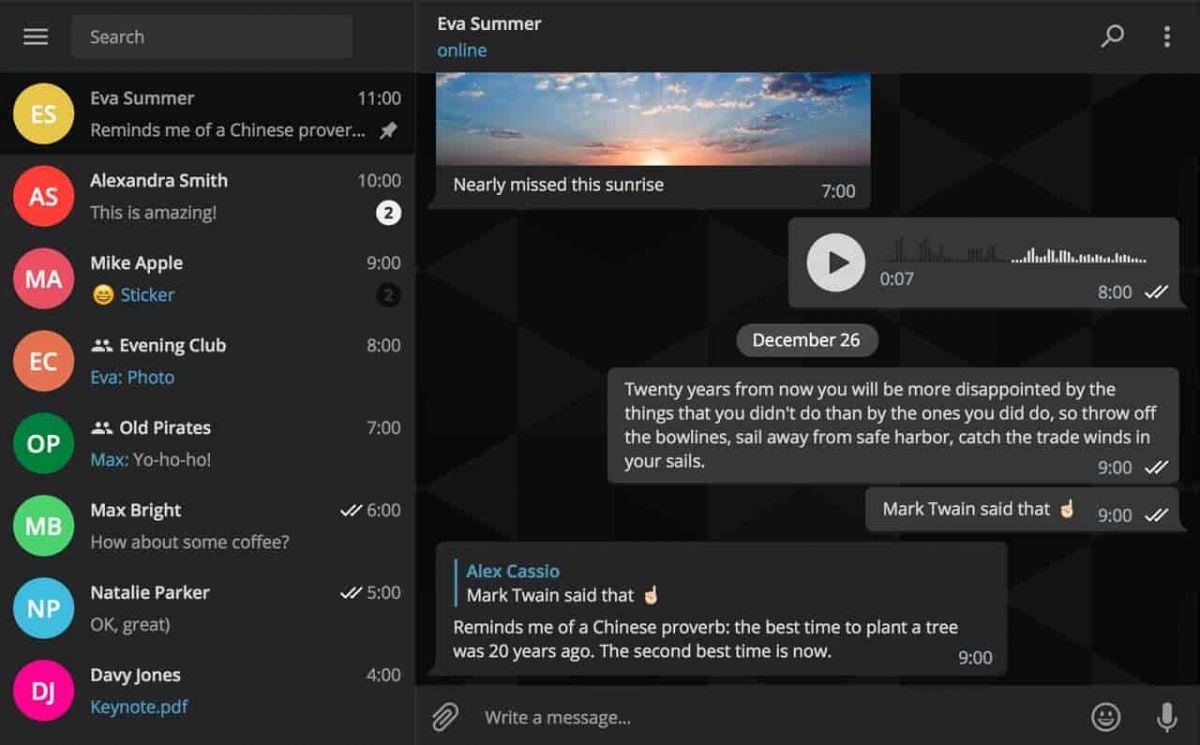
Here is a simple tutorial on how to personalize these features in Telegram.Creating Custom ThemesFor Desktop:1. Open Telegram Desktop and click on Settings.2. Click on Chat settings, then select Create New Theme.3. Name your theme then choose the color of the text, background, and button.4. Click Save Theme once your theme is to your liking.For mobile:1. Enter Telegram from your mobile device: Now, go to Settings > Chat Settings/Appearance.2. Click the Theme then select Create New Theme.3. Give your theme a name and adjust the colors to your liking.4. Tap the upper-right corner to save your changes.Setting Custom Notification Sounds1. Open Telegram chat.2. Click the top-left thumbnail of your profile picture.3. Tap on Notifications, then Customize.4. Select your sound of choice, browse through the provided options, or upload your own.

Get Google on your Devices
4.1
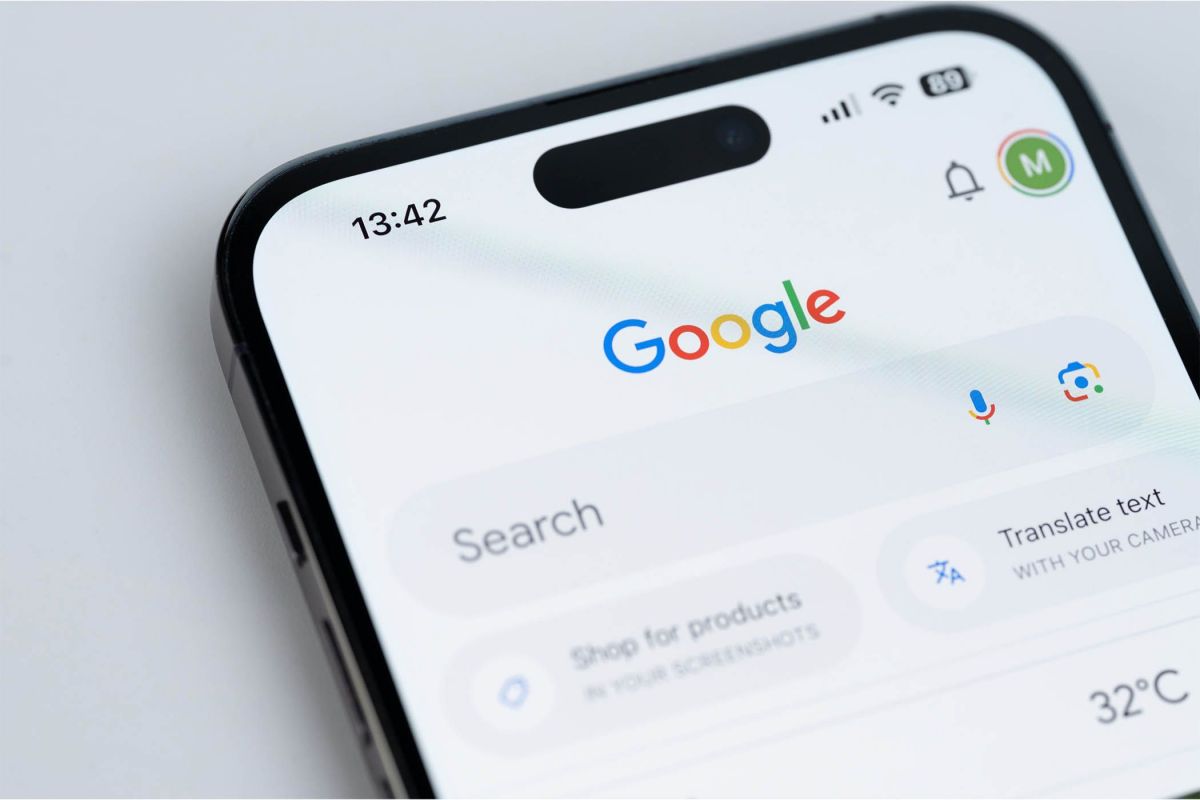
On Android Devices:Begin with launching the Google Play Store on your Android phone or tablet. Search for Google by typing “Google” into the search box. Otherwise, you can visit the same page directly from here https://play.google.com/store/apps/details?id=com.google.android.googlequicksearchbox. Now, click on the “Install” option once you’ve located it. Play Store will download the latest version currently available and install it on your device. Once it is completed, click “Open” in order to open the app. Update your device OS, and also check app permissions in an effort to allow voice search as well as detection of your locale for the best experience.On Apple Devices:From your iPad or iPhone, tap on the App Store icon and search for “Google” in the search bar. More conveniently, just go to the corresponding page from here https://apps.apple.com/us/app/google/id284815942. Tap the “Get” icon, then “Install” as prompted with your Apple ID, Face ID, or Touch ID. Google’s icon is on your home screen once it is installed. Tap on the app to get started on using its features such as voice search and content personalization.On PC:There is no Google app for computers, but you may use Google services in your web browser. Try launching a web browser like Chrome or Safari. Type in https://www.google.com in your address bar in order to visit Google search and other services.Additional Tips:After you install it, go through settings and enable features such as voice search, notifications, and settings for your personal feed. Look for additional features in app settings that allow you to customize your default search settings as well as your privacy. Update the app periodically for new features as well as for security updates

Keep Google Updated
4.1
For Android Users:Open the Play Store on Google and access the “My apps & games” page via the menu icon. Look for Google in the list of installed applications. If updated is available, you will see an “Update” icon beside the app. Tap on this icon and allow the update download and install automatically. For your convenience, you can enable automatic updating in the Play Store settings so your Google app is updated without your intervention.For iOS Users:Open your App Store on your iPhone or iPad and tap on your profile picture at top-right. Look for updates that are waiting to be installed. Look for Google and tap “Update” if you see it as an option, or “Update All” if you do not see it. Be on a secure Wi-Fi network in order not to be interrupted in between updating. After the update is complete, restart Google in order for the new features to be made accessible.On PC (Web Browser):No need for updates on those Google services accessed on the web, as they are in the cloud. However, keep your browser updated for optimal performance.

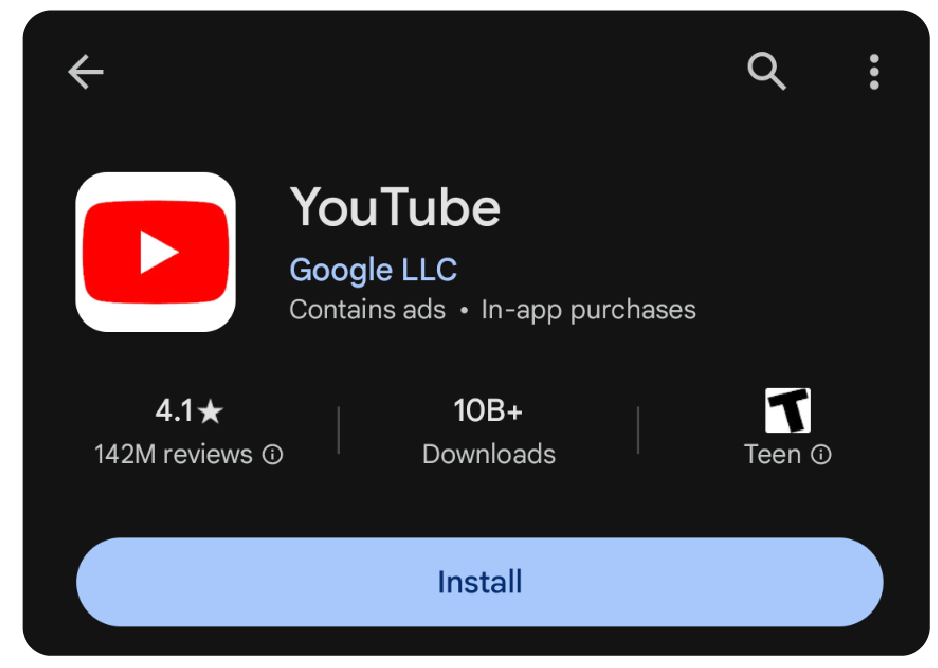
Download and Install YouTube
4.7
Precise StepsAndroid Devices1. Open Google Play Store.2. Click on the search icon and type “YouTube.”3. Select YouTube from the list given. More directly, visit the downloading page from here https://play.google.com/store/apps/details?id=com.google.android.youtube.4. Tap on “Install” to initiate the download and installation process. Make sure there is enough storage space on your device and a proper internet connection.iOS Devices1. Open the App Store.2. Key in “YouTube” in the search bar.3. Touch YouTube from the search results. In a more straightforward way, get access to the same destination page from here https://apps.apple.com/us/app/youtube/id544007664.4. Click on “Get” to download and install the app. You might be asked to enter your Apple ID password.PC/Laptop (Windows/Mac):For users on PC, you are not required to download any extra application; instead, you can access its official site https://www.youtube.com using any web browser.

Parking Passport Enrollment Guide
3.5
Open the app and tap “Sign Up.”Read the short Terms & Conditions and click “Accept.”Select how you’d like to log in: phone number, email or Facebook. Enter the requested details.A three-digit code to verify the purchase will come back immediately by text, call or email. Enter it in the app and tap “Verify.”Choose an easy-to-remember 4-digit PIN; it’s your fast pass to any future sessions.Enter your first vehicle: tag, state and a friendly nickname (like “Red Prius”). You can have other vehicles there later.Choose a payment method — a card, credit or debit — and save it safely. Passport encrypts all data.

Delve into Carnival's Fun with the App
4.6
A strength of the app is its personal touch. Activities can be filtered by guest interest, and they range from family friendly activities such as Seuss at Sea™ story time and parades to high-energy options like ropes courses or SportSquare challenges. The app even makes all the practicalities easy for you, book dining, bookmark your favourite activities and get live updates. This marriage of planning and participation takes cruising to a new level that makes each day custom-fit to you.Perfect for both first-time cruisers and experienced travelers, the app puts the“fun'in your cruise”all while keeping you connected to the fun exactly where you are. Families can plan children’s activities at Camp Ocean, and couples can easily locate romantic venues or evening entertainment. And by seamlessly blending ease with innovation, the app serves as a blueprint for Carnival's quest to deliver an unbeatable onboard experience that simultaneously challenges technology and thinks differently about fun.

Encountering Zero Hidden Fees
4.9
Remitly shows you all fees upfront from the very beginning, once you commence a transfer. Choose where you want to send it on the pricing page, and you'll immediately see associated fees, competitive exchange rates and the amount the recipient will receive exactly. There are no hidden charges and confusing calculations, whether sending to Nigeria at 0% fees or paying suppliers in Japan. Even third-party fees from banks or wallets are revealed up front, meaning that you do not waste time without being duly informed.And for peace of mind, Remitly comes with a promise to deliver on time—or it will refund your fees if there's a delay. With 100+ supported currencies and millions of international users, Remitly is evidence that transparency and dependability can cooperate.

Staying in Touch with Your Imprisoned Loved Ones
3.8
It's simple to use: sign up (or log in to an existing Securus account), locate your contact, buy “stamps,”and write a message. In addition to text, you can send up to 5 photos per message, e-cards and even a 30 second videogram (imagine, a smile on the faces of any loved one when they receive your video) You can also transfer stamps, or prepay for replies, to keep the conversation flowing.Ensure secure delivery of data, all communication is encrypted in transit and authorized contacts only are able to link up. You'll see the rejections notifications while you review your messages and attachments, stamps are not refunded. eMessaging helps friends and families connect easily and frequently with a great value that's safer, cheaper, and faster than snail mail.