


App Apps - Free Download & Official Reviews

WhatsApp Setup
 4.6
4.6
Installing WhatsApp on All of Your DevicesMobile Installation (Android and iOS)1. Android OS:- Open the Google Play Store.- In the search bar, type WhatsApp then press Enter.- Find WhatsApp Messenger and click “Install.” Or you can directly install it from here https://play.google.com/store/apps/details?id=com.whatsapp&hl=en_US- When installed, open the application and begin setup by following the on-screen instructions.2. iOS System:- Open the App Store.- In the search box, type WhatsApp and then search.- Look for WhatsApp Messenger, then click “Get” to begin downloading the application. Alternatively, visit the same page here https://apps.apple.com/us/app/whatsapp-messenger/id310633997- Upon download, open the application. Create your account by following the pop-up windows.Installation on Computer (Windows and Mac)1. Windows Operating System:- Access the official WhatsApp website http://www.whatsapp.com/download.- Get an installer for your Windows device by clicking “Download”.- Double click the installation file after downloading then run the setup wizard to install the application.2. Mac Operating System:- Launch WhatsApp official website:https://www.whatsapp.com/download.- Click “Download” to download the Mac version of the application.- Once downloaded, open the file and drag WhatsApp into your Applications folder.When installed, in order to link your mobile WhatsApp, you will have to scan a QR code to sync the messages.

What You Can Do with WhatsApp
4.6
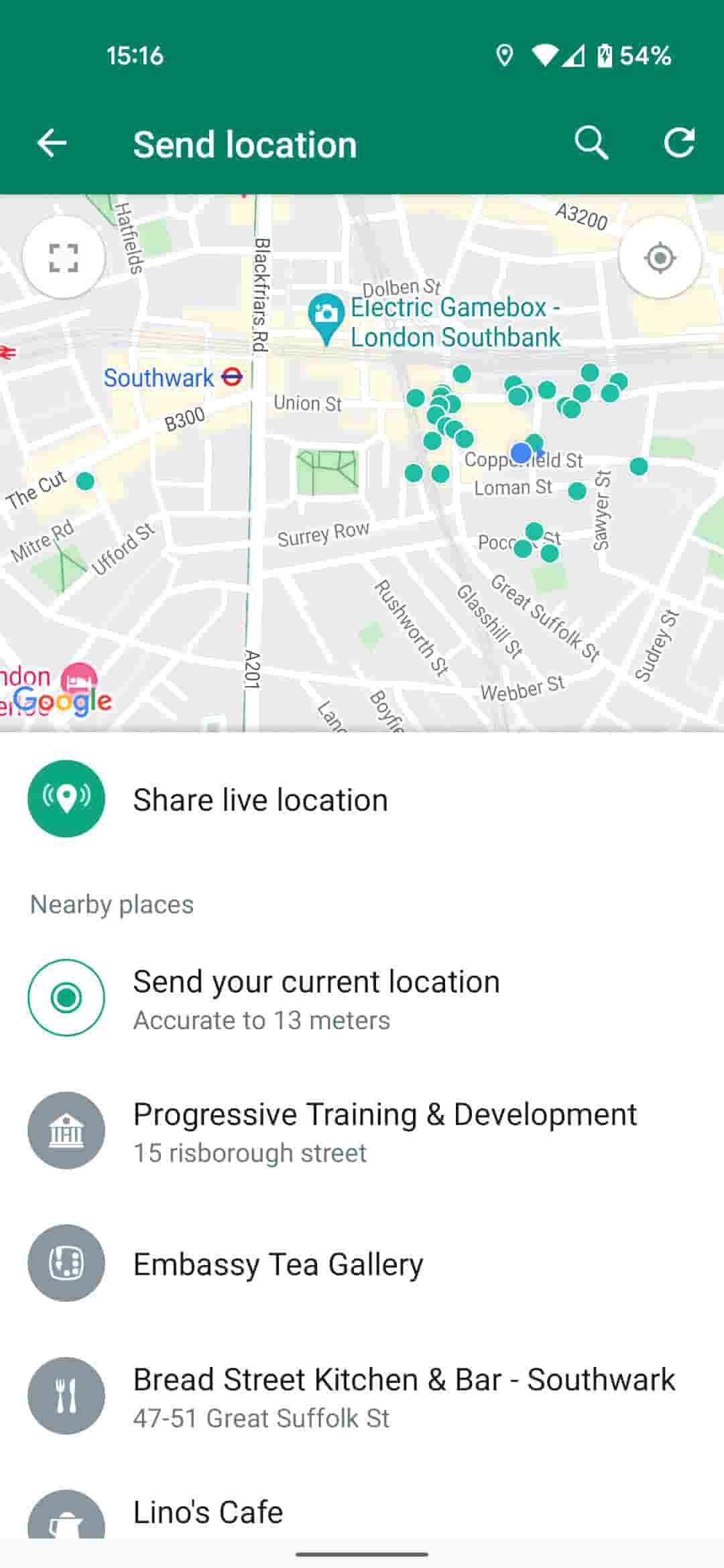
How to Use WhatsApp to Its Full Potential1. Users can send text messages, voice notes, make voice calls, and conduct video calls. It provides one-on-one chat and supports group chats of about 256 participants-a just-right number for team communication or family gathering.2. WhatsApp allows sending photos, videos, GIFs, and documents easily. Users can send high-quality media without the fear of compression or loss of quality. WhatsApp also supports sending live locations to help in coordinating meetups.3. The Status feature allows users to post photos and videos that vanish in 24 hours. It offers the possibility of sharing moments without their being saved-the feature is very tempting for users.

Recover Deleted WhatsApp Messages
4.6
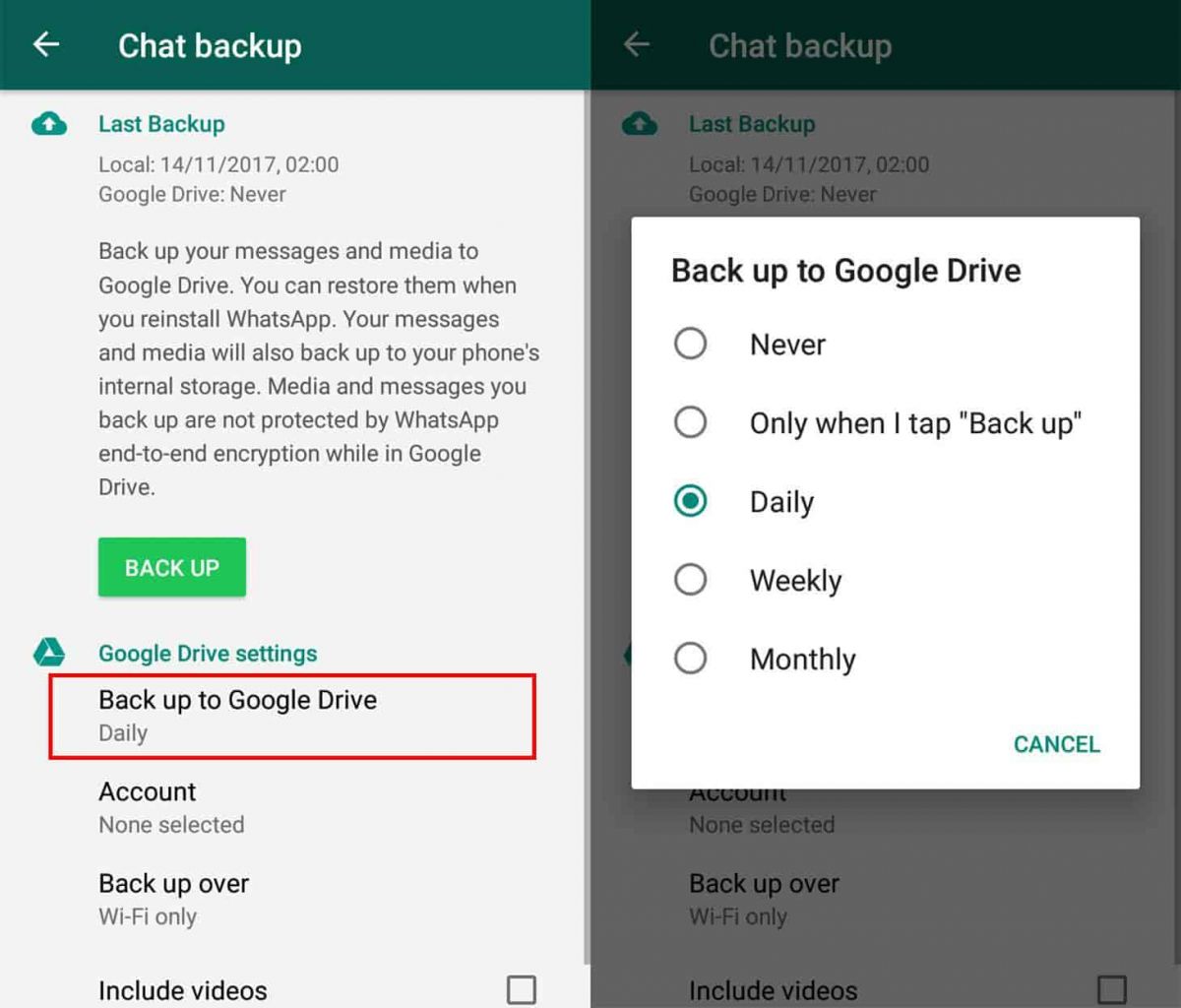
How to Recover Deleted Messages1. For Android Users:- First of all, make sure that Google Drive backup is enabled on your device. Check if backups are active in WhatsApp by going to “Settings” > “Chats” > “Chat Backup”.- Uninstall and reinstall WhatsApp, following the prompts that will be on the screen for restoring from Google Drive backup at installation.- Recover recently deleted messages by using notification history on some android phones. Based on whether or not this option is available within your settings, may use a notification history where you could recover recently deleted messages.2. For iOS Users:- Ensure iCloud backup is enabled for chats. Check iCloud settings on your device.- Uninstall and reinstall WhatsApp; during initial setup, choose to restore from iCloud backup.

Uninstall WhatsApp
4.6
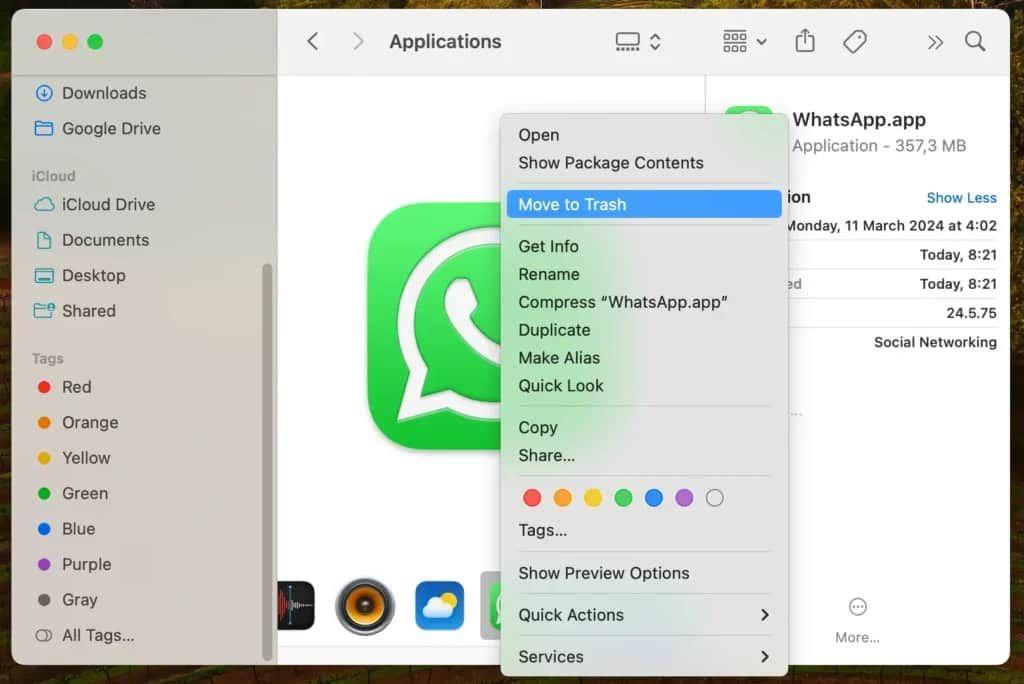
How to Uninstall WhatsApp1. Android Devices:- Long-press on the icon of WhatsApp and click on “Uninstall.”- Or go to “Settings,” select “Apps,” find WhatsApp, and click "Uninstall."2. iOS Devices:- Long-press on the icon for WhatsApp and select “Remove App.”- Alternatively, go to “Settings,” select “General,” then "iPhone Storage," locate WhatsApp, and delete it.3. Computer Systems (Windows/Mac):- In Windows, right-click at the Start Menu on WhatsApp’s icon and select “Uninstall.”- If you are on Mac, drag WhatsApp to Trash to delete it.

Always Keep WhatsApp Updated
4.6
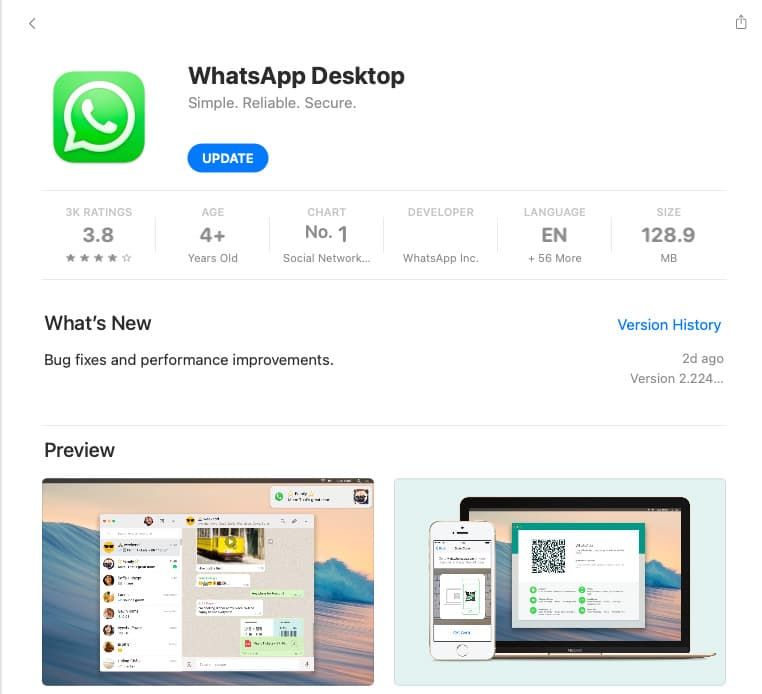
How to Keep It Updated1. If You’re Using an Android Device:- Open Google Play Store; tap on the menu icon in the top left corner then select “My apps & games.” If there are updates, they will appear on this page; click update beside WhatsApp.2. If You’re Using an iOS Device:- Go to the App Store, tap on the “Updates” icon bottom right; if there is an update for the apps such as WhatsApp, it will show here; tap “Update” beside it.3. If You’re Using a Desktop Device:- Access through an official website for the latest download, in case automatic updates have not been enabled for Windows or Mac users. Or directly launch the corresponding desktop app store to see if there is an updated option available.

How to Ensure Safety and Privacy when Using WhatsApp
4.6
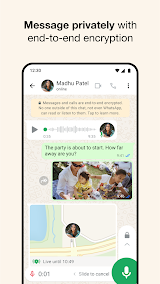
Anyway, it is surely a secured place for the communication due to security features of WhatsApp along with the awareness of its users.
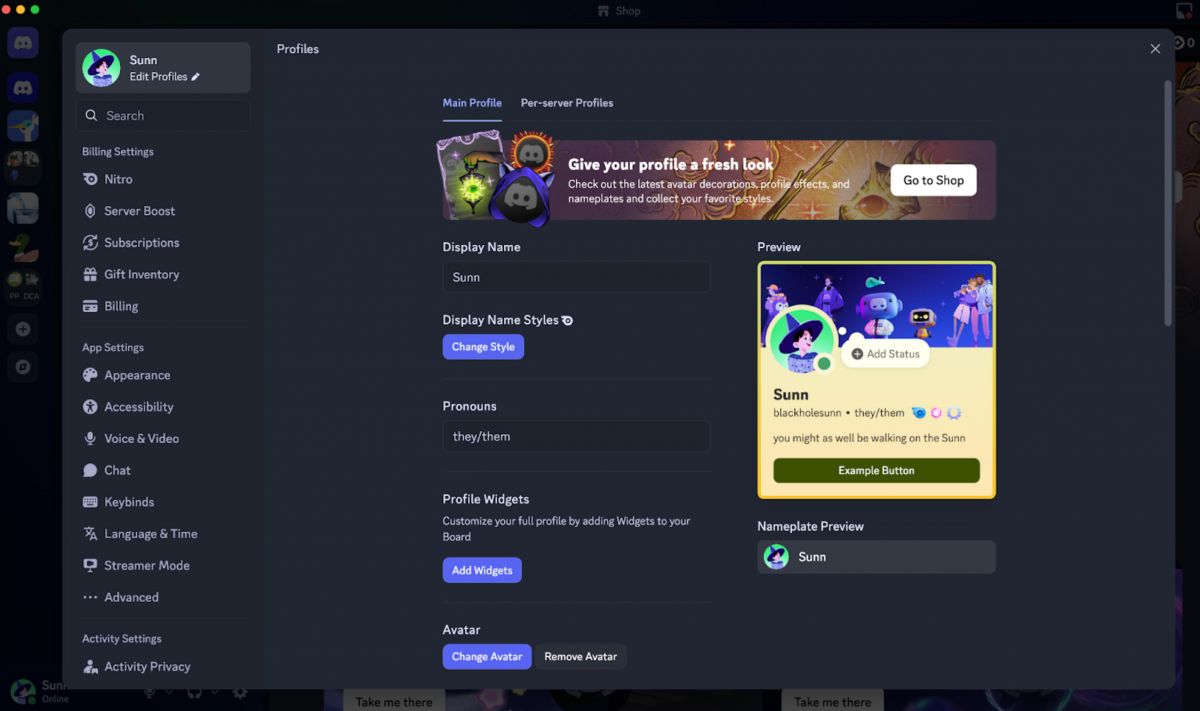
Craft a Discord Profile That Stands Out
4.7
Custom Status Messages enable you to share what you are doing with real time updates. Navigate to a custom status by going to your username at the bottom left, click "Set a custom status" and write whatever you like, from "Deep in ranked matches" to "Do not disturb" — writing deadline. The status also comes with a mood picture and you can even establish it so it will self-wipe following a specified amount of time.There's also rich presence, which uses Discord to track what game, music app, or software you're using, so long as the apps are connected. You're able to switch on or off some of the activities listed under Activity Settings for privacy (but to also be able to see what your friends are up to).Linking outside accounts gives your profile a trust boost. Tie in Spotify, Steam, Twitch, Reddit, or more. Some servers even hand out special roles automatically if you've got certain accounts linked.

Secure Transfers on Zelle
4.5
Steps to Ensure Safe Transactions1. Double-check the email address or U.S. mobile number of your recipient before you send money. Verify the recipient’s identity, either by contacting them verbally, or through a communication channel that you know to be trusted. Then send.2. Only send money for family and friends using the Service. Do not send money to unknown recipients to purchase goods or services from individuals you do not know.3. Beware of phishing scams or suspicious requests for money. Never share your Zelle PIN or verification codes with anyone. Be wary of emails or texts claiming to be from Zelle asking for personal information.4. Set up transaction notifications in your banking app to receive alerts for every Zelle transaction. Review these notifications promptly to identify any unauthorized activity.5. Check your bank account statements frequently to monitor for any suspicious transactions. Report any unauthorized activity to your bank immediately.6. Use strong, unique passwords for your online banking and Zelle accounts. Enable two-factor authentication (if available) for added security.