


Twitter Apps - Free Download & Official Reviews

Install Twitter Easily
 4.6
4.6
How to Get ItOn Mobile DevicesFor Android:1. Open Google Play Store on your device.2. Search for “X” in the search bar and click the official app from X Corp. More conveniently, you can just visit that page through here https://play.google.com/store/apps/details?id=com.twitter.android&hl=en_US.3. Click the “Install” button.4. After download, open the app and log in or create a new account.For iOS:1. Open the App Store on your iPhone or iPad.2. In the search tab, type “X”.3. Tap on the app from the results to download; tap “Get”. Alternatively, navigate it without the slightest effort from herehttps://apps.apple.com/us/app/x/id333903271.4. Once installed, open the application and log in or sign up.On ComputersFor Windows:1. Launch the Microsoft Store from your web browser or directly from the Start menu.2. Locate “X” and tap on the application.3. Click “Get” to download it.4. Once downloaded, find Twitter in your Start menu to open it.For Mac:1. Open the Mac App Store.2. To search Twitter, type ‘X’ in the search box. Or directly go to the same downloading page here https://apps.apple.com/us/app/x/id333903271.3. To download and install the app, tap Get.4. After you install it, open it from your Applications folder.Where Twitter Excels In1. Live Updates: Read the latest news on what’s happening in the news world.2. Engagement Tools: Like, Retweet and Reply to tweets.3. Multimedia Sharing: Share pictures, videos, and GIFs to make your tweets shine.4. Hashtags: To join the global conversations, use hashtags and search through content that is relatable to you.

How to Become Verified on Twitter
4.6
How to Increase Your Verification ChancesVerification Eligibility Criteria1. You need to pay for Twitter’s premium service, which is around $8 per month to get verified.2. Make sure your profile includes a display name, profile picture and bio that best represents you or your brand.3. Your account should be active with at least one tweet or retweet within the last 30 days.4. Your account must be at least 90 days old to apply for verification.5. Your profile information must not be deceptive or untrue; recent changes may affect qualifications.Steps to Apply for Verification1. Log in to your Twitter account. Click on Settings.2. Search for the verification request in account settings.3. Fill in the necessary information for your profile and submit the application.

Keep Your Account Secure
4.6
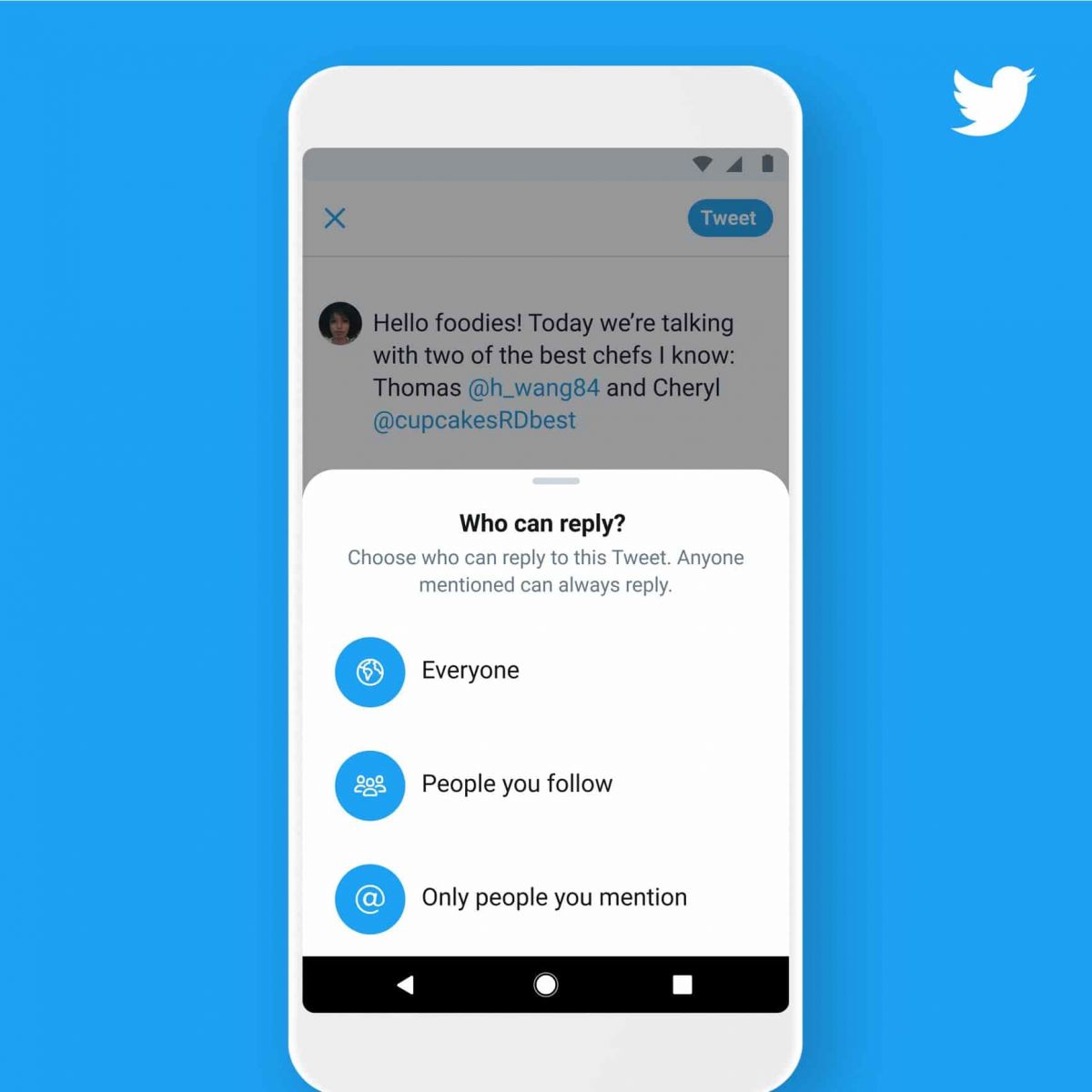
Measures to Prevent Compromise of Personal DataPrivacy Settings1. Set your account to private so that only confirmed followers can read your tweets.2. Control who can reply to your tweets by selecting options like “Everyone,” “People you follow,” or “Only people you mention.”Security Measures1. Enable 2FA for an extra layer of security during login.2. Use complex passwords like mix letters, numbers, and symbols and update them regularly.

Download Videos from Twitter
4.6
How to Save Videos You WantBuilt-in FeaturesThere’s currently no native way to download videos within Twitter’s website or app, however: You can bookmark tweets containing videos in it to watch online later.Third-Party Tools1. Websites such as SaveTweetVid or TwDown:- Copy the tweet link containing the video.- Paste it into the website’s input field.- Choose video quality and download.2. Use extensions such as Video DownloadHelper to get direct downloads from many sites, Twitter included.

Twitter Account Deactivation
4.6
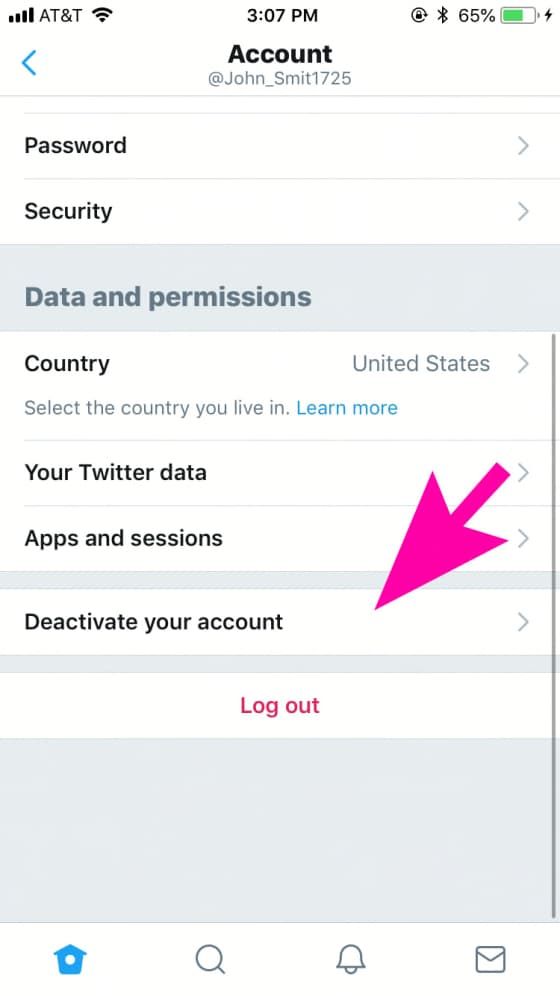
Steps to Disable Your Account1. Log in to your Twitter account via the desktop or mobile app.2. Click on your profile icon to go to “Settings”.3. Click “Your Account “then “Deactivate Your Account.”4. Go through the deactivation details shared by Twitter before finalizing your decision.Post-Deactivation TreatmentAfter deactivation, your account will be temporarily suspended for 30 days before it is permanently deleted; during this time you can reactivate if desired.

Place Your First Order on Temu
4.4
How to Complete the Purchase1. Log into the Open Temu account with the details of your account.2. You can browse through items on home page or search for products that can be used.3. You’ll want to click on the product you want, specify options like color, size, and quantity and click “Add to Cart.”4. To review items that have been added to the cart, tap on the top right corner on cart icon. The whole thing is fine, so make sure of that.5. If you confirm the accuracy of your correct shipping address.6. You have to choose your mode of preferred payment (such as from credit or debit card, etc), and you also need to fill the details accordingly.7. Before you click ‘Place Order’ make sure to check everything (that would include items, shipping address and payment method).

Read and Listen with Libby
4.8
A part of that is possible through the automatic sync of reading progress, bookmarks and notes. Whether you begin an ebook on one device, and pick another one up later by continuing exactly where you left off with just the flick of a wrist, or reading while commuting (you can listen to audiobooks as well) or during lunch break the app knows your exact position. This is amplified even more for audiobook lovers thanks to a robust audio player, which features variable playback speeds and a sleep timer for a personalized and uninterrupted listening session. For readers, the app provides a very customizable ebook reader with adjustable text size, font type as well as background color, even including reading in night mode comfortable to eyes.What’s more, you can access any title offline, so the stories and audiobooks you need are always at your fingertips — no Wi-Fi necessary. And now, sending ebooks directly to a Kindle device (US only) is just one step closer to sealing up the divide between library borrowing and optimal reading hardware.Combining these elements, Libby creates an entirely immersive user experience that is focused on the readeror listener themselves: a great choice for those who enjoy reading and listening to stories equally.

Uninstall WhatsApp
4.6
How to Uninstall WhatsApp1. Android Devices:- Long-press on the icon of WhatsApp and click on “Uninstall.”- Or go to “Settings,” select “Apps,” find WhatsApp, and click "Uninstall."2. iOS Devices:- Long-press on the icon for WhatsApp and select “Remove App.”- Alternatively, go to “Settings,” select “General,” then "iPhone Storage," locate WhatsApp, and delete it.3. Computer Systems (Windows/Mac):- In Windows, right-click at the Start Menu on WhatsApp’s icon and select “Uninstall.”- If you are on Mac, drag WhatsApp to Trash to delete it.