


Hot App Reviews - Best Free Apps Download & Guides

Install Instagram at No-Cost

WhatsApp Setup

Download and Install YouTube

What and How to Post on Instagram
 4.8
4.8
Types and Ways of Content You Can Post1. Photo Posts:- Tap the “+” icon located at the top left corner of your screen.- Select one picture from your gallery or take a new one.- Apply filters if desired before sharing.2. Video Posts:- Do the same as photo posts but select a video instead.- You can directly upload up to 60 seconds videos in your feed.3. Carousel Posts:- Select several photos or videos (up to 10) when prompted after tapping “+”.- Users can scroll through these posts in their feed.4. Stories:- Tap your profile picture at the top left corner or swipe right from your feed.- Take a new photo/video or select one from your gallery.- Add stickers or text before sharing it as a story which lasts 24 hours.5. Reels:- Record short-form video with Reels by tapping Reels at the bottom center of your screen.- You can edit videos with music and effects before posting them.


Install ChatGPT with No Efforts
4.8
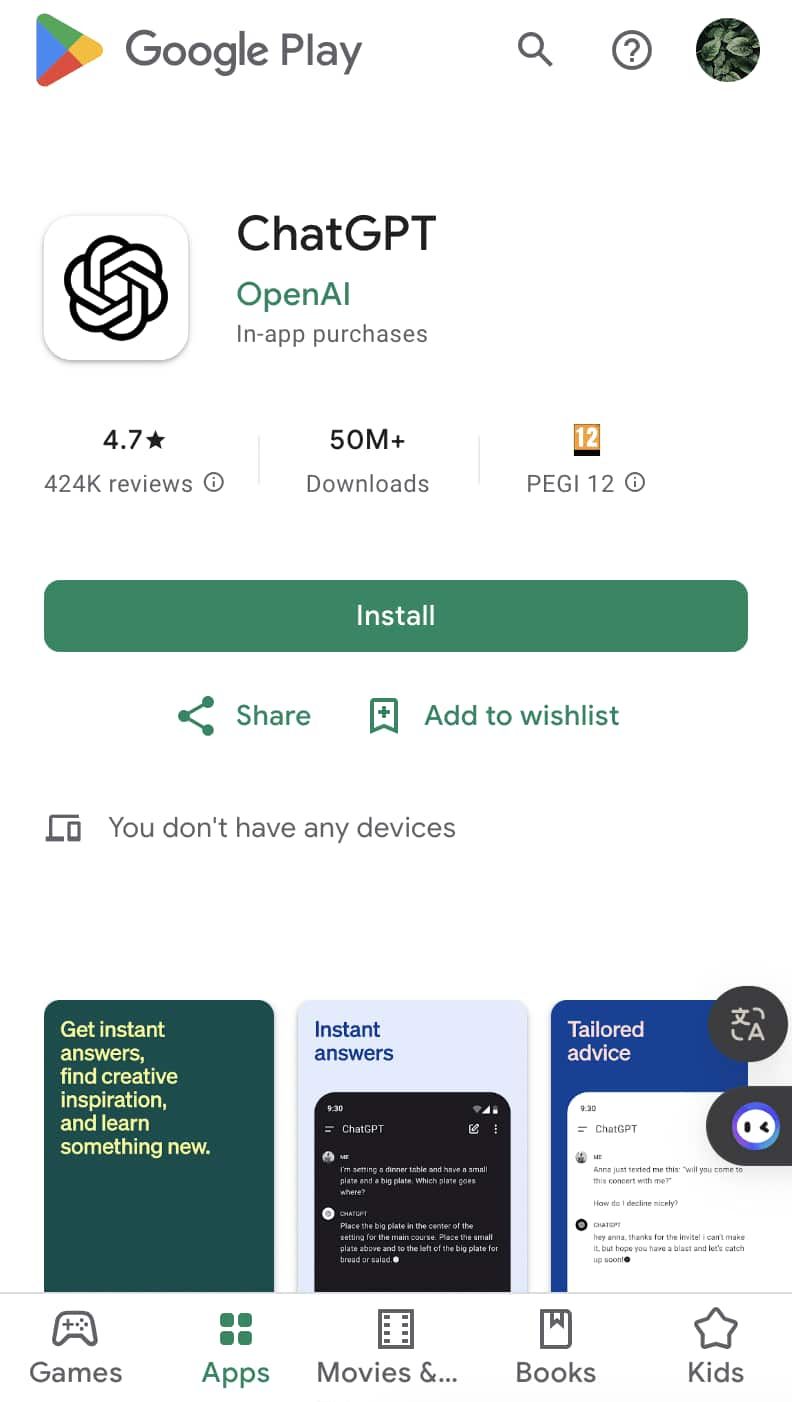
You can install it on your preferred device in just a few easy steps and tap into using this high-powered AI in putting work into anything from the following:ChatGPT Mobile1. For Android users:- Open the Google Play Store.- Type “ChatGPT” into the search bar and search.- Find the official app and click “Install.” Or you can directly visit this page from herehttps://play.google.com/store/apps/details?id=com.openai.chatgpt&hl=en_US.2. For iOS users:- Open the App Store.- Type “ChatGPT” into the search bar and search.- Find the official app, click “Get,” and install it. Even more directly, this step can be led to you from here https://apps.apple.com/us/app/chatgpt/id6448311069.ChatGPT PC- Visit the OpenAI official website here https://openai.com.- Locate the link to ChatGPT on the homepage and click to enter.- Register or log in to your OpenAI account.- Use the web version directly in your browser without needing to download any software.

Recover Deleted WhatsApp Messages
4.6
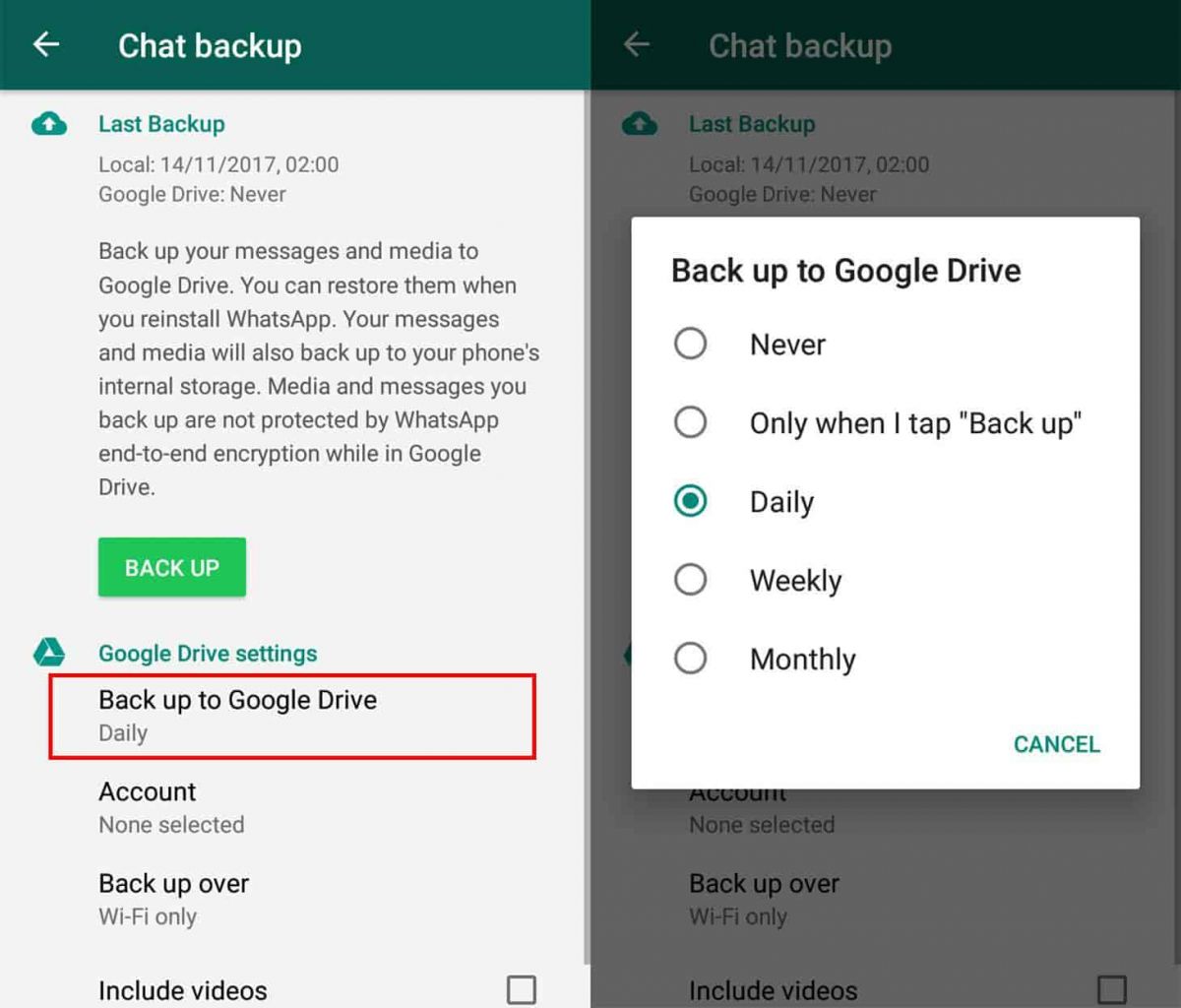
How to Recover Deleted Messages1. For Android Users:- First of all, make sure that Google Drive backup is enabled on your device. Check if backups are active in WhatsApp by going to “Settings” > “Chats” > “Chat Backup”.- Uninstall and reinstall WhatsApp, following the prompts that will be on the screen for restoring from Google Drive backup at installation.- Recover recently deleted messages by using notification history on some android phones. Based on whether or not this option is available within your settings, may use a notification history where you could recover recently deleted messages.2. For iOS Users:- Ensure iCloud backup is enabled for chats. Check iCloud settings on your device.- Uninstall and reinstall WhatsApp; during initial setup, choose to restore from iCloud backup.

Keep Temu Always Up-to-Date
4.4
Update Methods1. Auto Updates: For both Android and iOS, select “App Updates” in your device settings to update your Temu application automatically whenever a newer version is released.2. Manual Update: Go to the Play Store for Android or the App Store for iOS, search for “Temu,” and if it says that an update is available, just tap on “Update”.3. Desktop Version: Since Temu is web-based on PC browsers, the updates are automatically done. You just have to refresh the page to experience the new features.


Set Up Virtual Backgrounds in Zoom Meetings
4.7
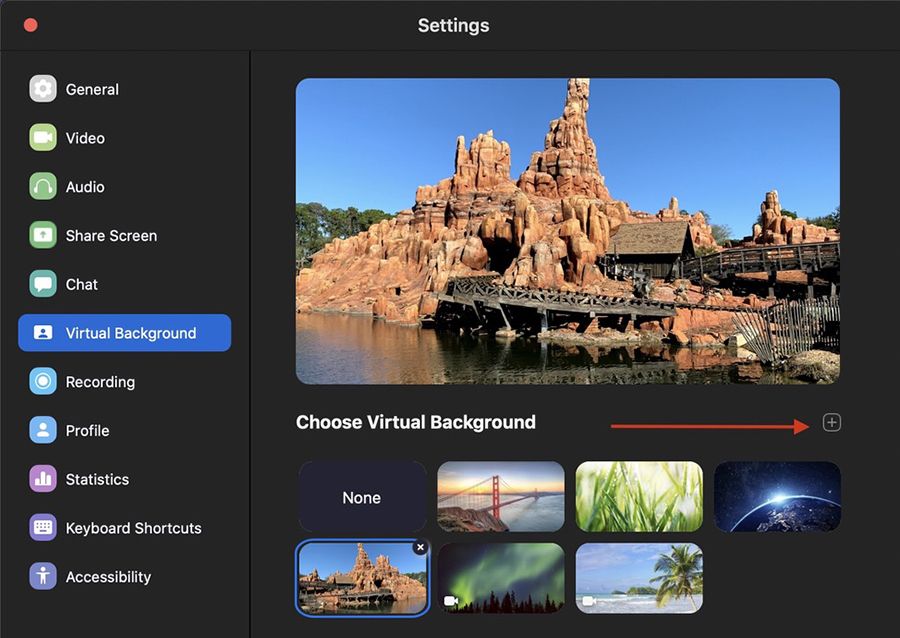
How to Set a Virtual Background for Zoom Meeting1. Open Zoom Settings:- Log in to Zoom, click on Settings (gear icon), then select Virtual Background.2. Choose or Add a Background:- Select a background from Zoom’s default options, or click + to upload your own image.- Ensure good lighting conditions for optimal performance of virtual backgrounds; avoid busy patterns in clothing as they may interfere with background effects.3. Adjust for Best Results:- Sit in the middle of the camera frame and use a solid background as well as good light if possible, and enable I have a green screen if you have one.- Use the “Mirror My Video” option to see what others will see and make some adjustments if needed.

Discover Unique Features of Ghost Detector
4.2
At its core, Ghost Detector Real Life Radar combines a series of advanced features: a ghost radar, a camera scan, EVP (Electronic Voice Phenomenon) recording, and interactive maps. The radar serves the purpose of visualizing spirits that are within range, and the camera makes use of real-time scanning to look for hidden movements, sometimes signaling their presence with red dots or radar spots. The app also uses your device’s light, infrared, and motion sensors to add to detection, adding credibility to each sighting—though ultimately for entertainment. Its night vision mode is also a stand-out feature, allowing users to explore dark places and perhaps find spooky activity where conventional means cannot.This app differs from more flexible ones, favoring simplicity of use. There are hardly any settings, so beginners can just jump in without confusion. With its EVP recorder, the users attempt to record anomalies in ambient sound—getting whispering voices or unexplained sounds on playback sometimes. The application is ideal for solo entertainment or group excursions, offering a new thrill each time. However, it should be understood that the result depends mainly on the quality of the device’s sensor and environment.


Explore the Power of FIXD Premium
4.6
The real value of FIXD Premium is the ability for it to provide you with personalized knowledge as well as product offerings & savings based on professional automotive expertise. Unlimited calls to our mechanic hotline with ASE-certified experts so you can get a second opinion on repairs and that advice if you're a DIYer. In addition, it offers market-based repair cost estimates cut by the accounts of actual shops in your area, but never in excess of the estimates and is basically a toggle setting for how fresh the rate data is to be used. All of this adds up to car owners who have the information they need whether they're doing a job themselves or having it done by a professional.But beyond diagnosis, the service improves preventative car care. It provides comprehensive vehicle history reports and other advance monitoring features which can lead to better health of your vehicle in the long run and possibly free you from those expensive future repair bills. FIXD Premium is a combination of great value from our original sensor and brand-new insight that comes with pairing the sensor to your powerful, always-available automotive advisor: making sense of all those random dash board lights and saving you time and money in what can often be an expensive ordeal.

Libraries Never Close With Your Loaning Pocket Card
4.8

About Securus Payments Solutions (Securus Debit)
3.8
What can I do with Securus Debit? You can add funds to a new or an existing phone number, you can purchase phone calls and video connect sessions, music and games for a tablet (availability varies by facility), eMessaging and a tablet service to help inmates make parole. There is no need to maintain separate prepaid accounts, which allows inmates the ability to use the funds to make calls to any type of phone number they wish. The feature is supposed to be available at correctional facilities that Securus works with, but specific services will differ by location.To access Securus Debit, families only need to fund their account via the mobile app or website on a one-time or recurring basis. It is claimed a small fee may be charged for each funding transaction, while transfers from the inmate's trust account are generally free. Securus Debit is an efficient way of funding the inmates telephone account, reducing the time it takes to set up an account and enabling family members to help maintain emotional connections with inmates in correctional institutions.

Plantum의 '화분 측정기'가 식물 관리를 최적화하는 방법
4.1
앱은 물주기 빈도, 식물의 빛 요구량, 사용해야 할 토양 종류 및 비료에 대한 제안을 제공합니다. 심지어 식물을 잊지 않도록 시기적절한 알림까지 보내줍니다. 노란 잎 관리부터 새 묘목 재배까지, Plantum의 유용한 조언을 따르면 식물 관리를 간단하게 만들어 주변 환경을 서서히 푸르르고 풍요로운 공간으로 가꿀 수 있습니다.뿐만 아니라, Plantum은 최첨단 이미지 매칭 기술을 통해 버섯, 나무, 꽃, 곤충 등 40,000종 이상의 자연물을 식별할 수도 있습니다.AI 기술을 통해, 이 앱은 병든 잎 사진으로부터 식물 질병을 진단하고 건강을 회복시키기 위한 해결책을 제안할 수 있습니다.정원인들을 더욱 돕기 위해, 물주기, 비료 주기, 실외로 내놓는 시기 등에 대한 맞춤형 알림 기능도 있습니다. 여기에 더해 내장된 '조도계' 및 '날씨 예보' 기능과 같은 특별 도구도 갖추고 있습니다. 이러한 모든 기능은 독창적일 뿐만 아니라 모든 수준의 정원사에게 실용적인 응용 가능성을 제공하며, 과학에 기반한 지도를 통해 식물의 더 나은 삶을 촉진하는 데 모두 기여합니다.