


Networking Apps - Free Download & Official Reviews

Download Telegram Easily
 4.0
4.0
Detail Installation Steps1. Android Devices:- Open the Google Play Store. In the search box, input “Telegram.”- Tap the one from Telegram FZ-LLC, then tap “Install.” More simply, you can just visit here to view the same page https://play.google.com/store/apps/details?id=org.telegram.messenger&hl=en_US.- Download and install the app. Open the app once downloaded and register your account using your phone number.2. Apple Devices iPhone/iPad:- On your Apple device, launch the App Store and search for “Telegram.”- Tap “Get,” then “Install” when prompted. Alternatively, get to the downloading page simply from here https://apps.apple.com/us/app/telegram-messenger/id686449807.- Install from the store and open it: in-app, register your phone number and start using Telegram.3. Desktop Version (Windows/Mac):- Go to the official Telegram website https://desktop.telegram.organd download the desktop application for your operating system.- Follow the installation prompts, then open Telegram.- Link it now with your mobile account, either by scanning the QR code or by typing your phone number.4. Web Version:- Alternatively, Telegram has a Web version for those who do not want to install anything. In a browser, just go to its official homepage https://web.telegram.org/k/, insert your phone number and access your account.

What Can You Do with Telegram
4.0
What Telegram Allows You to Do1. Secret Chats:- Besides basics, for additional security, Telegram provides “secret chats” that are end-to-end encrypted and even self-destruct on expiration.- The messages of Secret Chats also cannot be forwarded, further giving control over the information shared.2. Cloud-Based Messaging with Unlimited Storage:- Telegram is cloud-based: your messages and files are stored in the cloud; therefore, you can view them from any device without occupying any local storage.3. Sharing Large Files:Telegram allows you to share large files (up to 2 GB) in one go, a unique feature compared to other messaging apps that restrict file size.4. Bot and Personalization- Telegram provides an excellent bot platform through which users can perform actions, access information, and even play games.- You will be able to find all kinds of bots, from those that will help one with the weather forecast, translation, or news updates.5. Channels and Groups:- Telegram allows for groups of up to 200,000 people and channels allow one-way broadcasting; thus, it’s good to put out some of your messages.
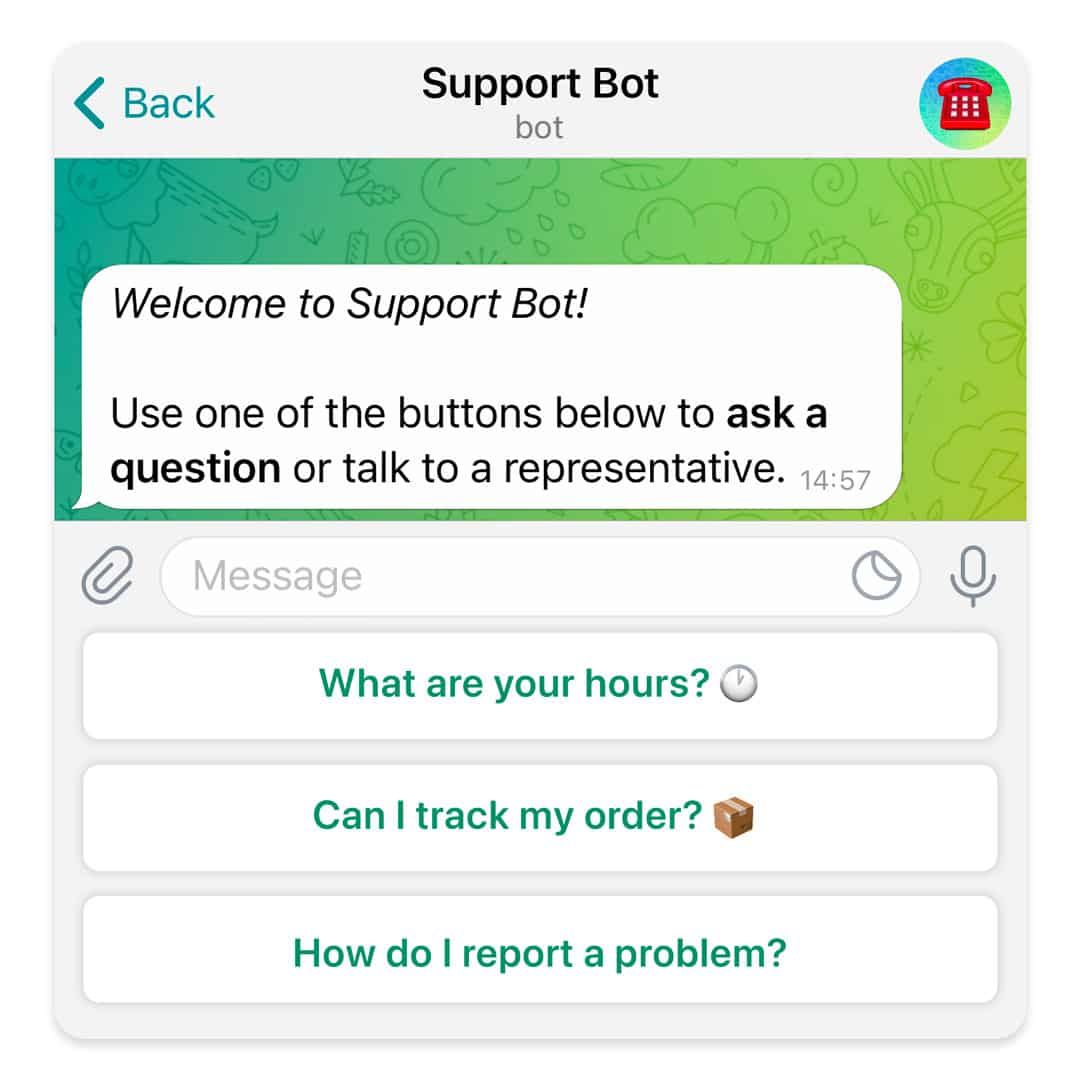

Create Your Channel in Telegram
4.0
Telegram makes it easy to create a channel, and it provides additional features for managing and growing your audience. Here’s how to set up your own Telegram channel.1. Open Telegram and click the menu icon: three horizontal lines.2. Among the options appearing, click New Channel.3. Name your channel, and an optional description for the purpose can be given.4. Decide if you want the channel to be public, where everyone can find it, or a private one, where only invited members will join.5. If public, send the link so it’s easy to join; if private, share invite links only with invited individuals.6. Having made all your preferences in the channel, tap Create and optionally add members.


Customize Telegram Themes & Notification
4.0
Here is a simple tutorial on how to personalize these features in Telegram.Creating Custom ThemesFor Desktop:1. Open Telegram Desktop and click on Settings.2. Click on Chat settings, then select Create New Theme.3. Name your theme then choose the color of the text, background, and button.4. Click Save Theme once your theme is to your liking.For mobile:1. Enter Telegram from your mobile device: Now, go to Settings > Chat Settings/Appearance.2. Click the Theme then select Create New Theme.3. Give your theme a name and adjust the colors to your liking.4. Tap the upper-right corner to save your changes.Setting Custom Notification Sounds1. Open Telegram chat.2. Click the top-left thumbnail of your profile picture.3. Tap on Notifications, then Customize.4. Select your sound of choice, browse through the provided options, or upload your own.

Telegram’s Safety Features
4.0
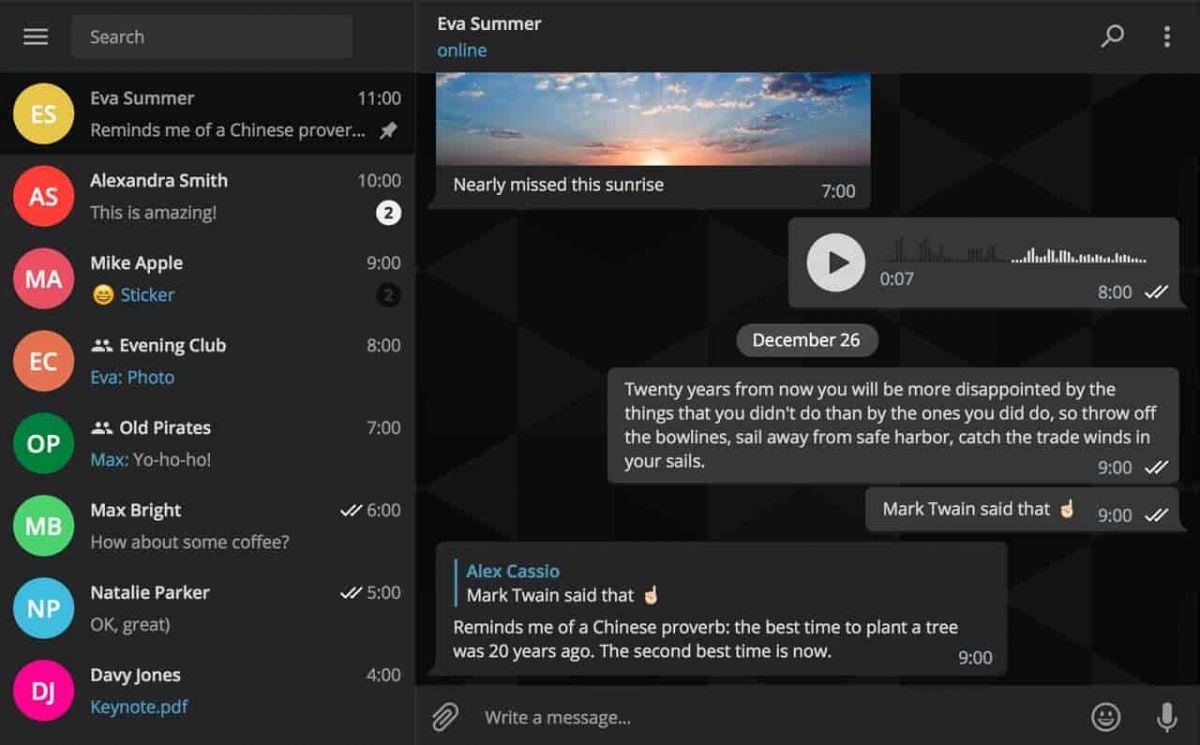
1. Enable Two-Step Verification:- For the extra layer of security, one can enable a password via Settings > Privacy and Security > Two-Step Verification.- This will prevent unauthorized use, even if anyone else knows your telephone number.2. Sending Private Messages via Secret Chats:- Secret Chats use end-to-end encryption, including self-destruct timers, which is great for sensitive information.- They never reach Telegram’s servers and therefore never leave your device.3. Control Who Can Contact You:- In Settings > Privacy and Security, select who can view your profile photo, your last seen, and phone number.- You can block contacts, manage messages coming from strangers, and you can limit this for unnecessary conversations.4. Self-Destruct Media in Regular Chats:- Open any chat, tap the clock icon while sending a photo or video. After setting the self-destruct timer for media to disappear once viewed.

Update Citi Mobile Across Devices
4.9
On Android Devices1. Launch Google Play Store.2. Search for “Citi Mobile.”3. Tap “Update” if available.4. Wait for the download and installation to complete.5. Open the application to make sure that it is working fine.On iOS Devices1. Open the App Store.2. Tap your profile, then “Available Updates.”3. Find Citi Mobile and tap “Update.”4. Wait for the installation to finish.5. Open the app again to see if it is updated.Via PC or Web Portal1. Access the Citi website.2. Go to Citi Mobile section.3. Make sure that browser versions are updated to avoid compatibility issues.4. Clear cache or cookies if any errors pop up.

WhatsApp Setup
4.6
Installing WhatsApp on All of Your DevicesMobile Installation (Android and iOS)1. Android OS:- Open the Google Play Store.- In the search bar, type WhatsApp then press Enter.- Find WhatsApp Messenger and click “Install.” Or you can directly install it from here https://play.google.com/store/apps/details?id=com.whatsapp&hl=en_US- When installed, open the application and begin setup by following the on-screen instructions.2. iOS System:- Open the App Store.- In the search box, type WhatsApp and then search.- Look for WhatsApp Messenger, then click “Get” to begin downloading the application. Alternatively, visit the same page here https://apps.apple.com/us/app/whatsapp-messenger/id310633997- Upon download, open the application. Create your account by following the pop-up windows.Installation on Computer (Windows and Mac)1. Windows Operating System:- Access the official WhatsApp website http://www.whatsapp.com/download.- Get an installer for your Windows device by clicking “Download”.- Double click the installation file after downloading then run the setup wizard to install the application.2. Mac Operating System:- Launch WhatsApp official website:https://www.whatsapp.com/download.- Click “Download” to download the Mac version of the application.- Once downloaded, open the file and drag WhatsApp into your Applications folder.When installed, in order to link your mobile WhatsApp, you will have to scan a QR code to sync the messages.