


Search Apps - Free Download & Official Reviews

Get Google on your Devices
 4.1
4.1
On Android Devices:Begin with launching the Google Play Store on your Android phone or tablet. Search for Google by typing “Google” into the search box. Otherwise, you can visit the same page directly from here https://play.google.com/store/apps/details?id=com.google.android.googlequicksearchbox. Now, click on the “Install” option once you’ve located it. Play Store will download the latest version currently available and install it on your device. Once it is completed, click “Open” in order to open the app. Update your device OS, and also check app permissions in an effort to allow voice search as well as detection of your locale for the best experience.On Apple Devices:From your iPad or iPhone, tap on the App Store icon and search for “Google” in the search bar. More conveniently, just go to the corresponding page from here https://apps.apple.com/us/app/google/id284815942. Tap the “Get” icon, then “Install” as prompted with your Apple ID, Face ID, or Touch ID. Google’s icon is on your home screen once it is installed. Tap on the app to get started on using its features such as voice search and content personalization.On PC:There is no Google app for computers, but you may use Google services in your web browser. Try launching a web browser like Chrome or Safari. Type in https://www.google.com in your address bar in order to visit Google search and other services.Additional Tips:After you install it, go through settings and enable features such as voice search, notifications, and settings for your personal feed. Look for additional features in app settings that allow you to customize your default search settings as well as your privacy. Update the app periodically for new features as well as for security updates

Google Visual Search
4.1
Using Google Lens on Android:1. Launch Google on your Android device2. Tap the camera icon in the search box (Google Lens)3. Position your camera in front of the object that you are trying to recognize4. Press the camera’s shutter button to capture the photograph5. Let Google scan the picture and display search results6. Scroll through the matches for your image search7. Click on any result for more informationAccessing Google Lens on an iPhone:1. Launch Google on your iPhone or iPad2. Tap on the camera icon beside the search bar3. Grant camera authorization if asked4. Look at your object via the camera5. Press the capture key6. Observe what Google shows for the object discovered7. Compare similar objects or related search outcomes

Keep Google Updated
4.1
For Android Users:Open the Play Store on Google and access the “My apps & games” page via the menu icon. Look for Google in the list of installed applications. If updated is available, you will see an “Update” icon beside the app. Tap on this icon and allow the update download and install automatically. For your convenience, you can enable automatic updating in the Play Store settings so your Google app is updated without your intervention.For iOS Users:Open your App Store on your iPhone or iPad and tap on your profile picture at top-right. Look for updates that are waiting to be installed. Look for Google and tap “Update” if you see it as an option, or “Update All” if you do not see it. Be on a secure Wi-Fi network in order not to be interrupted in between updating. After the update is complete, restart Google in order for the new features to be made accessible.On PC (Web Browser):No need for updates on those Google services accessed on the web, as they are in the cloud. However, keep your browser updated for optimal performance.

Protect Your Search Privacy
4.1
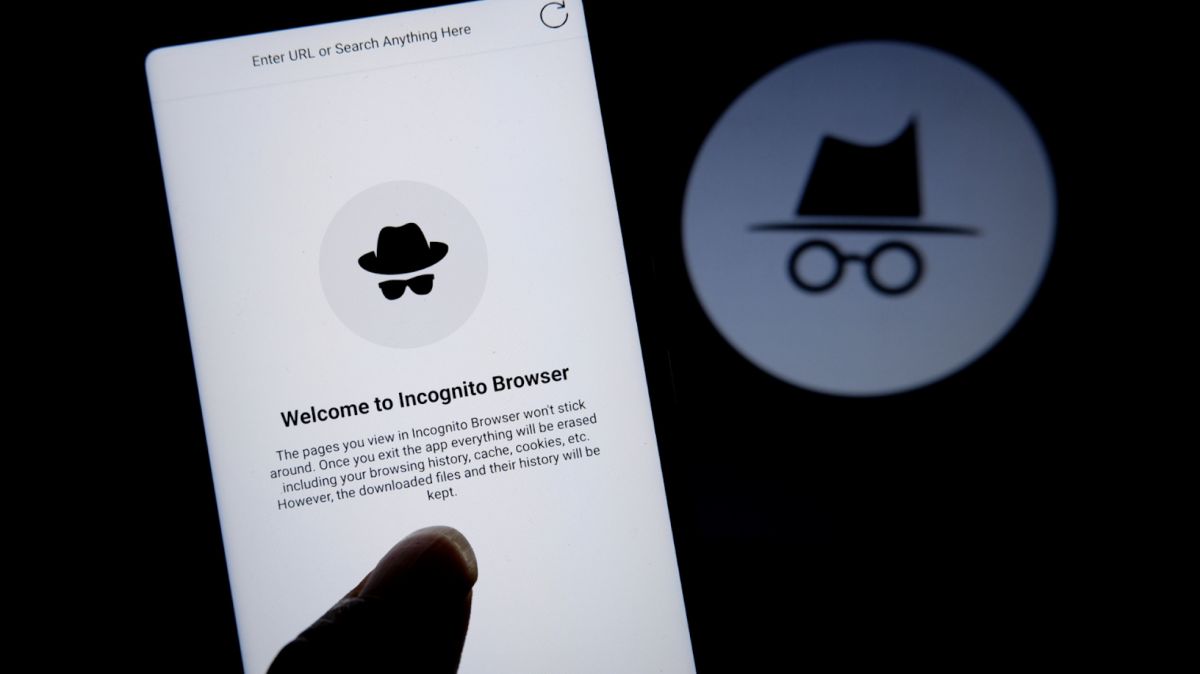
Managing Search History and Activity1. Launch Google2. Tap your profile picture in the top-right3. Click “Manage your Google Account”4. Go to the “Data & Privacy” page5. In the “History settings,” select “Web & App Activity”6. Turn off “Web & App Activity” so Google does not record your searches7. Or choose “Auto-delete” to delete activity older than some chosen timeframePrivate Searches with Incognito Mode1. Launch Google on your smartphone2. Tap your profile picture at the top right3. Choose “Turn on Incognito Mode”4. In Google Chrome browser, tap on three-dot menu and select “New Incognito Window”5. Conduct your searches without storing history in your account6. Close the tab or window in Incognito mode once completed7. Keep in mind that while Incognito blocks local history storage, your ISP knows what you are doing

Use Google for Homework Solution
4.1
Step 1: Launch Google and Go to Google LensBegin by launching Google on your Android or iPhone. Look for the camera icon, Google Lens, normally displayed prominently in or beside the search bar. Tap on the icon in order to enter Google Lens mode. If prompted, grant the necessary permissions (such as camera and storage) for the app to photograph correctly.Step 2: Choose or Take the Homework ProblemAfter activating Google Lens, decide whether you want to take a new picture or use an old one. Ensure the picture taken is clear and the problem is fully visible and readable. If parts of the picture are unclear, retake the picture.Step 3: Highlight the Problem AreaAfter you’ve taken or selected the picture, Google Lens displays overlay options. Zoom in or drag the focus box on top of the specific area of the assignment that must be solved with your finger. It could be an advanced math problem, a diagram in your physics class, or even the text in your textbook. Selecting the exact area enhances recognition accuracy as well as analysis on the related content.Step 4: Retrieve and Analyze InformationOnce you’ve underlined the area of concern, tap the “Identify” or “Search” icon. Google Lens scans the picture and displays a list of possibilities for you. Carefully read the options displayed. If numerous answers are listed, scroll down to the most appropriate answer. You can even tap on particular answers for additional description, usually linked with reputable academic websites or other digital texts.


How to Update Walmart
4.8
For iOS devices:1. Open the App Store.2. Tap on your profile icon at the top right corner.3. Scroll down to find pending updates; if Walmart is listed, tap Update next to it.For Android devices, follow these steps:1. Launch the Google Play Store.2. Tap the three horizontal lines (menu) in the top left corner.3. Select My apps & games and look for Walmart in the list of updates available.4. If Walmart shows up, tap Update next to it.For PC users accessing Walmart via browser, no update is needed; refreshing your browser will implement any changes/enhancements made on the website.

Beginner-Friendly Sports Betting on Stake.com
5
Soccer (Football): Football is the world game with a widely popular betting variation that is easy to comprehend, such as winner of match, over/under goals, and both teams to score. Having so much information available makes it easier for newcomers to place smart bets.Tennis: Betting on tennis is simple with common markets like match winner, set winner, and games in play. Tennis matches are typically brief, and beginners can quickly understand results and outcomes.Basketball: Similar to tennis, basketball offers simple bet types like moneyline and point spreads. The fast pace and high scoring frequency make it exciting and easier to comprehend for new bettors.Esports: Stake.com also has esports betting, which is growing very rapidly. Leagues like League of Legends, CS:GO and Dota 2 have simple betting markets and are popular among young players who know the game.Quick Tips for All Beginners- Start with single‑leg bets before attempting parlays.- Bet small to maintain control of risk and become comfortable with the platform.- Utilize Stake.com’s live odds feed to spot value opportunities.- Utilize the “My Bets” page to monitor outcomes and adjust your strategy.

Understanding the Core Pros
4.6
First, the idea of convenience is central to Domino’s appeal. With an easy-to-use mobile app and website that allow customers to order in seconds, track their delivery real time and even customize pizzas with their own toppings. The brand's "AnyWare" capability also accepts orders from smartwatches, voice assistants and social media platforms to reach tech-savvy users.Second, its delivery is known for speed and reliability. Domino’s promises, and delivers (within a minimum of 30 minutes if available), hot off the oven pizzas and features an order tracking system to keep customers updated. With an effective logistics system, it serves customers with fast delivery regardless of busy hours.Third, quality and variety impress. Domino’s Pizza puts its own spin on the bite-size meals with quality ingredients, such as 100% real mozzarella cheese and fresh dough. There’s something for everyone on the menu, including vegetarian and vegan options, along with gluten-free options and classics.In the end, value for money speaks volumes. Frequent deals, combo offers and loyalty programs such as “Pieces of the Pie Rewards” allow customers to accumulate points for free pizzas, so cost is not a barrier.Mix technology, quality, and customer service in Domino’s Pizza is an experience that few can match with that overcoming the refusal to return.