


productivity Apps - Free Download & Official Reviews

Protect Your Data and Privacy in Microsoft Teams
 4.8
4.8
Data Loss Prevention (DLP) policies prevent even sensitive information like credit card numbers, national identification numbers, or proprietary business data, from being accidentally or maliciously shared in Team chats or channels. A DLP rule is applied at all times, even when it is triggered by a message, and is automatically added to a filter to ensure compliance with the rule.DLP rule that is automatically added to a filter and applied when triggered by a message, adding an intelligent compliance filter to everyday communication.If you’re an individual user, pay attention to what you put in guest accessible channels. Guests can view everything posted in the channels they are added to, so it’s best not to place internal only details there. You should also check who has guest access from the Members panel, and remove past guests quickly once a project ends or an agreement is over.Teams privacy controls also shape how meetings work. Recording of the meeting can be prohibited for download by others, participants can be restricted to a presenter and the meeting lobby can be turned "on" to prevent entrance of non-charge participants except on an invite-only basis. These small settings can greatly help in regulating discussion dynamics and who is able to see what on sensitive discussions.
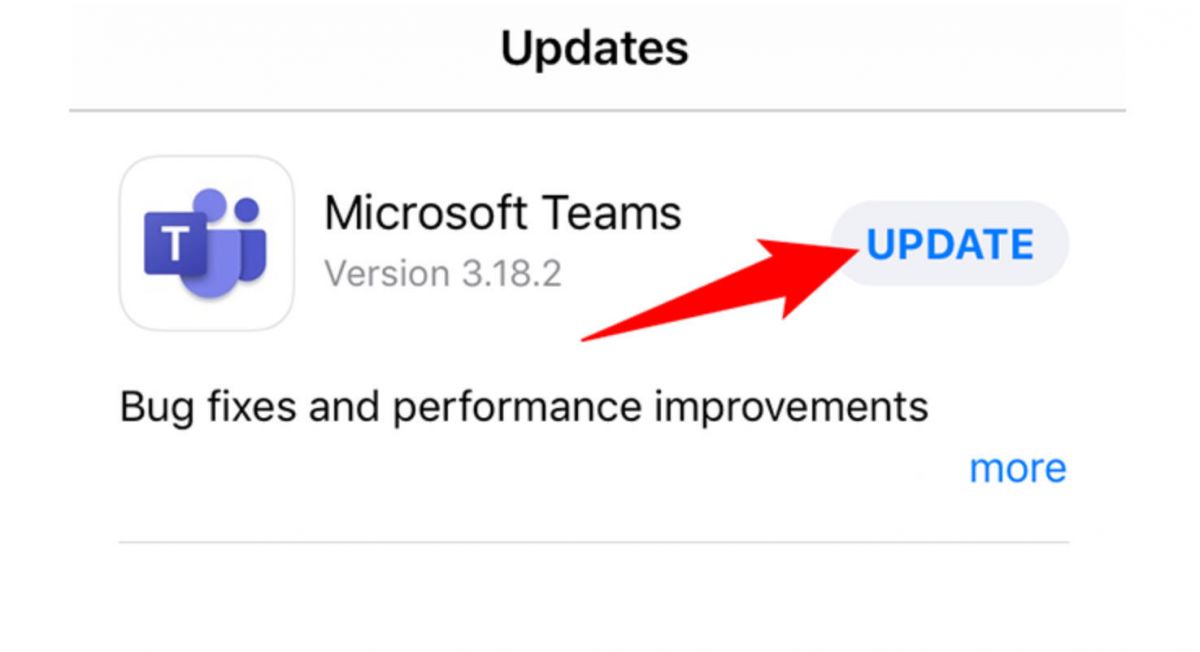
Keep Microsoft Teams Up to Date
4.8
On Android:- Open the Google Play Store and tap your profile icon in the top-right corner.- Select Manage apps & device, then check the Updates available tab for Microsoft Teams.- Tap Update to install the latest version, or tap Update all to refresh all pending apps at once.- To enable automatic updates for Teams, open its Play Store listing, tap the three-dot menu, and select Enable auto-update.- Alternatively, enable background auto-updates for all apps under Play Store Settings > Network preferences > Auto-update apps.

Microsoft Word
4.8
Microsoft Word has been setting the standard for professional document making for ages, and now its mobile app sort of carries that same legendary “works every time” power right onto your smartphone. Whether you’re shaping contracts, revising summaries, or teaming up with coworkers across different time zones, Word gives you a smooth full-feature layout for writing, so you stay effective wherever your day decides to go.
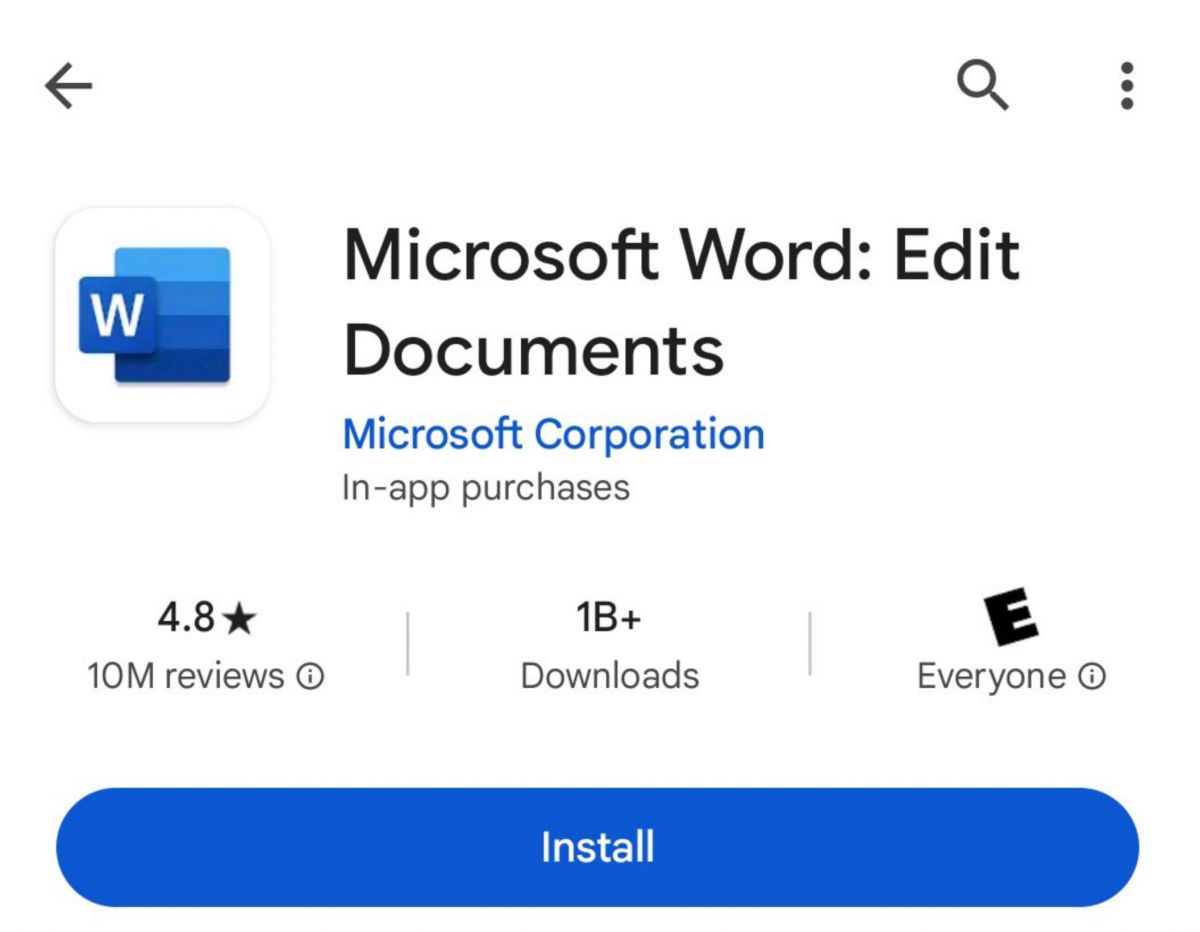
Install Microsoft Word Securely
4.8
Android (Smartphones & Tablets):- Open the Google Play Store on your Android phone, then tap the search bar at the top.- Enter “Microsoft Word” and choose the official listing linked to the developer name “Microsoft Corporation”.- Tap Install, let it download, the app itself is free and there’s no purchase required just to put it on your device.- Once installed, tap Open and sign in using your existing Microsoft account, or set up a new one for free.- Allow the app access to your storage and files when asked, so you can open, save, and export documents smoothly.- If your company runs Microsoft 365 Business or Enterprise, sign in with your work credentials to reach shared libraries, team templates, and IT-controlled security settings.Word is regularly updated for both iOS and Android and provides almost the same functionality. Use the same Microsoft account on every device and each document will be available, up-to-date and backed up.
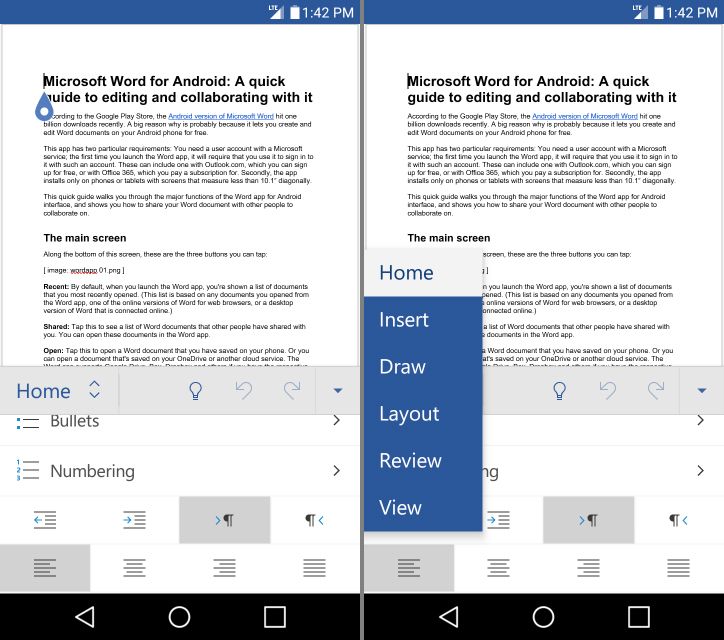
Master Microsoft Word for Mobile Efficiency
4.8
Focus Mode also helps a lot with mobile productivity. It removes most interface clutter, leaving only your text on screen—so distractions shrink, and writing feels easier. Add Word’s built-in word count tracker, and you get a clean, distraction-light writing space that can compete with dedicated writing apps.Word on mobile also handles styles and templates in a pretty strong way. You can apply heading levels, body styles, and document themes with a single tap, so documents you create on the go look properly finished, not half-done. Pre-built templates, like meeting agendas or project proposals are easy to reach directly in the app, which gives you a professional starting point even when you’re working against the clock.Last, but certainly not least is the mobile friendly "Reading View". Switching to Reading View when viewing a document instead of editing it will reconfigure the document for easy reading on screen, changing both the size and layout of the text. When used with Word's powerful comment and track-changes capabilities, it can truly streamline the reviewing and presenting process of documents on the go, rather than it being a frustrating and sub-optimal compromise.
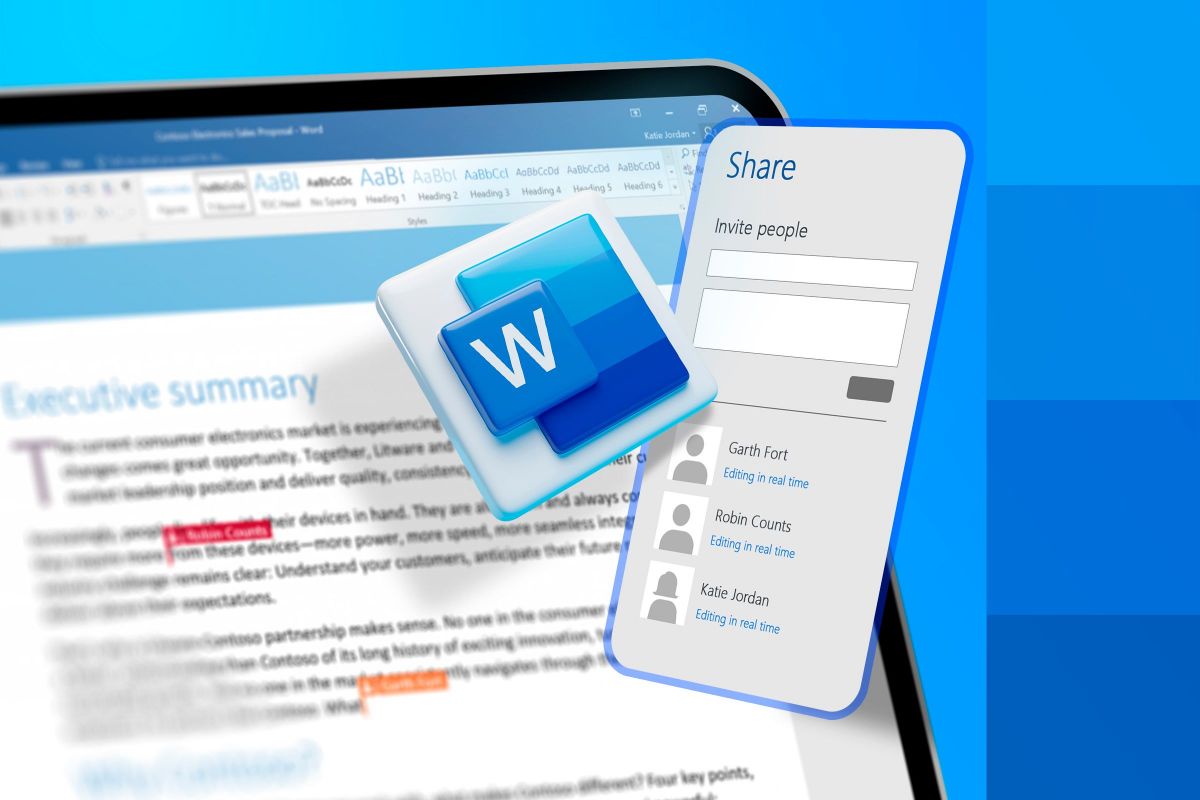
Microsoft Word Makes Real-Time Collaboration Simple
4.8
Now when several authorized people open the cloud-hosted document at once, the app shows colored markers plus those moving cursors so you can see where each participant is working and what they are actively typing. This real-time synchronization avoids this old annoying habit of emailing versions back and forth, which often leads to scattered data or version control clashes. You can actually watch sections being drafted, changed, rearranged, and refined live, and the whole group workflow stays more agile than before.To run that shared editing effectively, the "Comments" and "Track Changes" tools are basically must-haves. Collaborators can mark specific lines or sentences, then add threaded comment feedback right beside the text, so the discussion stays relevant. Also turning on Track Changes forces the system to record every change, removal, or new addition that anyone makes. Then as the main author you can review the logged edits, accepting or rejecting changes one by one. This gives you a final digital document that benefits from group input, while still preserving the intended structure and professional accuracy needed for official publication, and honestly it keeps everything cleaner.
Deploy Microsoft Word’s Intelligent AI Utilities
4.8
Another highlight is the Rewrite feature. Select a passage, ask Copilot to rewrite it, and mention the tone or formality level, maybe also the preferred length. Then it gives multiple alternate versions for you to pick from. So if you want a paragraph shorter, or you want to move from casual to authoritative, or you’re rephrasing for a different audience, Copilot handles that pretty quickly and with decent sense.Copilot can offer help with document formatting and structure. Tell it to "add a table of contents" or "format this as a formal business report" and it will reformat your document. If you're someone who knows what you're looking to convey, but not exactly sure how to present it in a professional manner, then this is truly a game-changer since you can create polished, well-organised output without needing to deeply know how to manipulate Word's formatting tools.
How to Keep Microsoft Word at Its Best and Latest
4.8
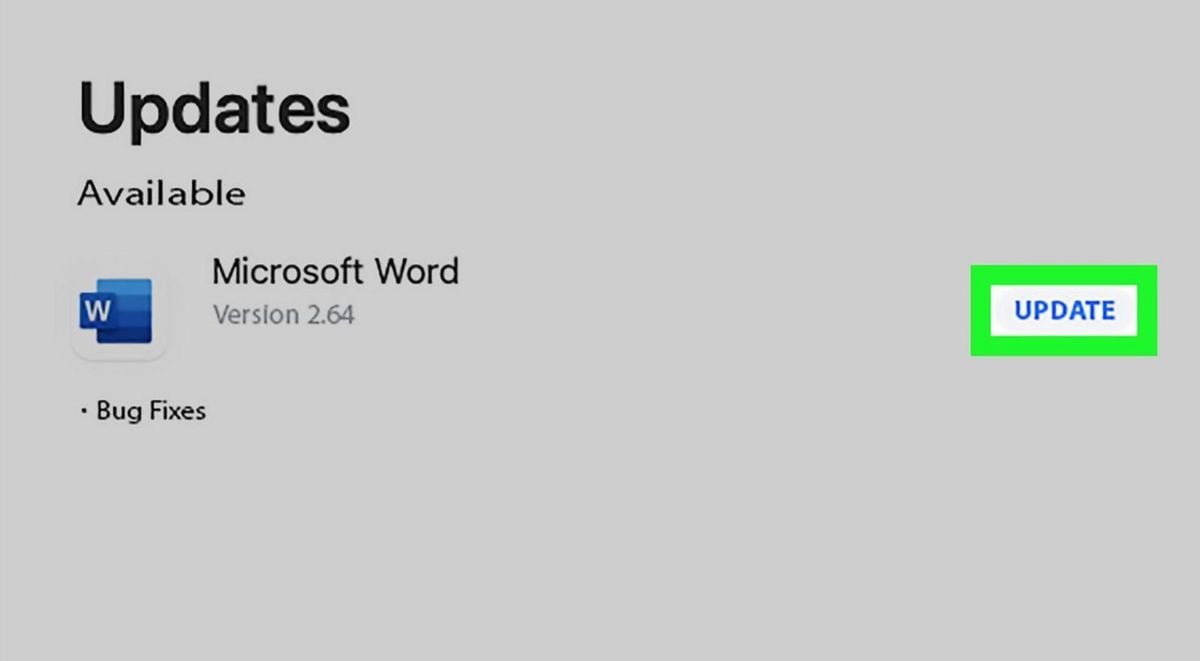
Updating on Android:- Open the Google Play Store and tap your profile icon in the top-right corner.- Select Manage apps & device, then tap Updates available to see a list of pending updates.- Locate Microsoft Word in the list and tap Update, or tap Update All to update everything at once.- To enable automatic updates for Word specifically, navigate to the Word page in the Play Store, tap the three-dot menu in the top-right corner, and select Enable auto update.- Ensure you are connected to Wi-Fi before updating to avoid consuming mobile data — Word updates can be sizeable given the app's feature richness.

Install Instagram at No-Cost
4.8
How to Install Instagram in Your DeviceFor iOS Devices:1. Open the App Store.2. Visit the search tab at the top and there input ‘Instagram’ in the search bar. Alternatively, directly visit the download page here https://apps.apple.com/us/app/instagram/id389801252.3. Select Instagram from the search results.4. To download the application, simply tap the “Get” button.5. You authenticate, provided you agree, if prompted, with Face ID, Touch ID or an Apple ID password.6. After it has been downloaded, click “Open” to get going with Instagram.For Android Devices:1. Open Google Play Store.2. Search for “Instagram” in the top search bar.3. Scroll down to select Instagram from the search results.4. Download the app by tapping to “Install”. Or directly access the download page here https://play.google.com/store/apps/details?id=com.instagram.android&hl=en_US.5. Afterward, when you’ve installed it, tap on “Open” to enter Instagram.For PC Users:1. Visit the official Instagram site here www.instagram.com.2. Sign up if you have not yet, or login with your current account.

Download Instagram Lite Quickly
4.8
How to Get Instagram Lite on Your Device1. For Android: Go to Google Play Store, search — ‘Instagram Lite’ and click Install. Or directly visit here https://play.google.com/store/apps/details?id=com.instagram.lite&hl=en_USin your browser. After installing app, open app and make new account or login of already account.2. For PC and iOS: At the moment, Instagram Lite is only available for Android devices, so there’s no desktop or iOS version.

Save Videos or Photos From Instagram
4.8
How to Save Content1. Download Videos(1) From Stories:- Tap your profile picture to view your story.- Click the three-dot symbol in the right corner of your video.- Click “Save” to download it directly to your device.(2) From Posts:- To save the posts you like without downloading them directly, you can tap the flag icon at the bottom right of the video post to save it in your Collections under Instagram.(3) Using Third-Party Apps:- For those that can’t be directly saved, consider using apps like “Video Downloader for Instagram” for Android or “Blaze: Browser & File Manager” for iPhone by copying the link of the video post. However, be respectful of privacy and copyright. Always ask for permission before downloading and using someone else’s content.2. Download Photos(1) Using Screenshots:- Take a screenshot of any image you want to save. But it may reduce the image quality.(2) Using Collections:- Like photos, on any photo post you like, tap the flag icon to save it in your Collections for easy access later.

What and How to Post on Instagram
4.8
Types and Ways of Content You Can Post1. Photo Posts:- Tap the “+” icon located at the top left corner of your screen.- Select one picture from your gallery or take a new one.- Apply filters if desired before sharing.2. Video Posts:- Do the same as photo posts but select a video instead.- You can directly upload up to 60 seconds videos in your feed.3. Carousel Posts:- Select several photos or videos (up to 10) when prompted after tapping “+”.- Users can scroll through these posts in their feed.4. Stories:- Tap your profile picture at the top left corner or swipe right from your feed.- Take a new photo/video or select one from your gallery.- Add stickers or text before sharing it as a story which lasts 24 hours.5. Reels:- Record short-form video with Reels by tapping Reels at the bottom center of your screen.- You can edit videos with music and effects before posting them.

Keep your Instagram Private
4.8
Privacy Settings1. Set your Account to Private:- Go to Settings > Privacy > Account Privacy and turn on “Private Account.” This will make your posts and stories visible only to approved followers.2. Manage Comments and Messages:- Control who can comment on your posts by going into Settings > Privacy > Comments where you can restrict comments from specific users or everyone except those you follow.3. Manage Location Sharing:- Be cautious when sharing location data while posting pictures or stories; disable location services in your device settings if necessary.4. Review Tagged Photos:- Check tagged photos by going into Settings > Privacy > Tags where you can choose whether tagged posts appear on your profile automatically or require approval first.5. Restrict Profile Visibility:- Regularly check followers; delete any that seem suspect or unauthorized to view your profile information.

Install ChatGPT with No Efforts
4.8
You can install it on your preferred device in just a few easy steps and tap into using this high-powered AI in putting work into anything from the following:ChatGPT Mobile1. For Android users:- Open the Google Play Store.- Type “ChatGPT” into the search bar and search.- Find the official app and click “Install.” Or you can directly visit this page from herehttps://play.google.com/store/apps/details?id=com.openai.chatgpt&hl=en_US.2. For iOS users:- Open the App Store.- Type “ChatGPT” into the search bar and search.- Find the official app, click “Get,” and install it. Even more directly, this step can be led to you from here https://apps.apple.com/us/app/chatgpt/id6448311069.ChatGPT PC- Visit the OpenAI official website here https://openai.com.- Locate the link to ChatGPT on the homepage and click to enter.- Register or log in to your OpenAI account.- Use the web version directly in your browser without needing to download any software.

Effectively Communicate with ChatGPT
4.8
1. Be Clear with Your Questions:When you ask specific questions, it is much easier for ChatGPT to understand what you need. You could skip asking for a general narrative of history like “Tell me about the history”, and instead may ask, “What are the main causes of World War I?”2. Provide Context:If what you are talking about is highly specialized, you may want to provide more background. Technical questions should also mention the tool or programming languages you are using.3. Ask Successively:If you feel overwhelmed by the information you may get, decompose your questions into smaller components and ask successively. You can first introduce a general concept and then go on with the details.4. Give Feedback and Adjust:If ChatGPT’s response is not what you expect, give feedback and ask for further clarification or adjustment of its answer.

What Can I Do with ChatGPT
4.8
Uses1. Homework Help: Students could use ChatGPT model for homework help, knowledge review, and problem-solving.2. Content Creation: Through the tool, writers or content creators will be able to draft articles, get ideas, or edit text.3. Programming Support: For programmers, ChatGPT will assist in debugging code, advising on how programming can be done, or solving tech issues.4. Daily Task Management: Users can write emails, plan their schedule, or ask for recommendations regarding travel using it.Benefits1. Time-Efficiency: Most of the tasks/actions are automated, and/or information is provided to the users through ChatGPT instantaneously.2. Productive Results: Be it studying or working, in both cases, ChatGPT increases the productivity of the user by helping them complete the task faster than would have been possible without the tool.3. Increased Creativity: Newer ideas and concepts developed through AI elevate thinking and boost creativity.

ChatGPT vs. Other AI tools
4.8
1. Google GeminiFormerly named Bard, it is designed to work in perfect concert with Google services. Pulling information in real-time and offering unlimited questions at no additional cost, it nonetheless works only really well for those deeply embedded in the Google ecosystem. The contextual depth required for more in-depth, creative writing or deep discussions isn’t as accessible compared to ChatGPT.2. Microsoft CopilotIn fact, it integrates well with the Microsoft Office applications, providing document summarization, on-the-fly assistance within tools such as Word and Excel, among many other features. While Copilot will be very useful for users that spend most of their time in Microsoft products, in many ways it works at a more granular level and requires users to move in and out of various applications. ChatGPT, in contrast, is a better conversation tool in that regard, and doesn’t require quite as much application switching, thus making the workflow less jumpy.3. ClaudeDeveloped by Anthropic, focuses on safety and ethical AI use. It provides robust conversational capabilities and is designed to be helpful and harmless. However, while Claude excels in certain tasks like coding assistance and summarization, ChatGPT outperforms it in generating creative content and maintaining engaging dialogues. The extensive training data and advanced algorithms behind ChatGPT enable it to produce more varied and contextually rich responses.